
2.36.24
Triggers
Everything that starts processes by itself, in one place: the trigger runs, and the triggers that made them. You add, change, start and delete triggers here, fill in a form trigger's form, and follow or abort what the triggers did.
A trigger starts a run of a process when something happens: a time comes round (a Timer), a system posts data to Spider (a Webhook), someone submits a form (a Form), or an integration module notices something, such as a new e-mail. Each time it fires, it makes a trigger run, which starts the process run or runs.
How to get there
- From the main menu: Spider › Triggers.
- From the breadcrumbs of a trigger run's page: Triggers.
Permission
To open the page and see its triggers you need View definitions, or Member or View triggers for the whole organization. The Runs tab needs Member or View triggers.
Some commands need more:
| Command | Permission sets that allow it |
|---|---|
| Add trigger, Delete | Manage definitions |
| Changing a trigger | Change definitions |
| Start now | Start runs |
| Open form | Submit forms |
| Abort | Resolve issues and run actions |
| The Permissions tab | Manage definitions, Manage runs, View permissions or Manage permissions |
Manage organization allows all of them. Member lets you see everything here, but not add, change, start or delete anything, nor fill in a form trigger's form. Commands you may not use are not shown, and a trigger you may see but not change opens read-only; see Permissions.
Views
Runs
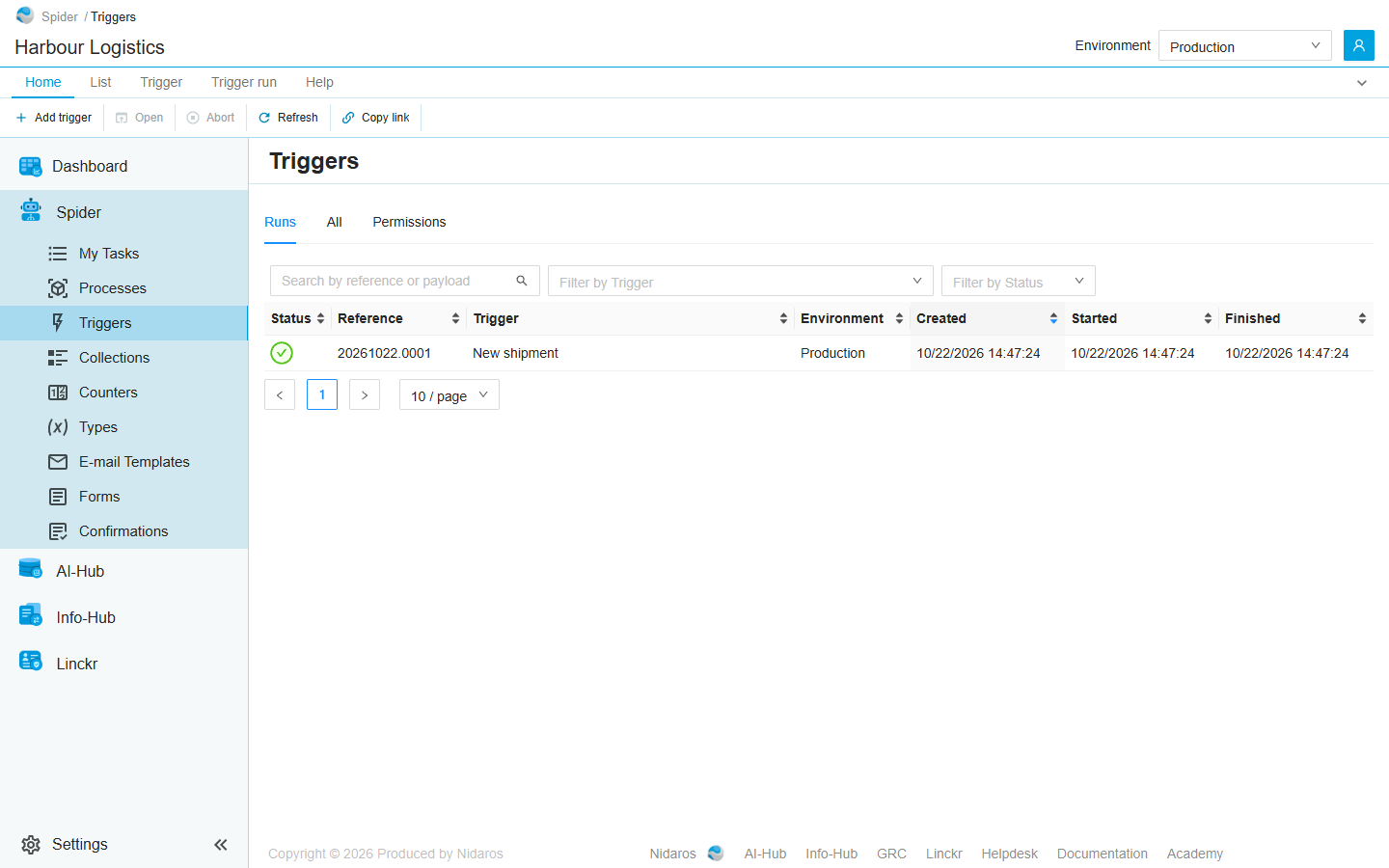
The organization's trigger runs, newest first, in the environment selected in the header (see Environments). This is the tab the page opens on.
| Column | Shows |
|---|---|
| Status | The run's status, as an icon. Point at it to see the status. See Statuses. |
| Reference | The run's reference, such as 20261022.0001. |
| Trigger | The trigger that made the run. |
| Environment | The environment the run ran in. |
| Created, Started, Finished | When the run was created, started and finished. |
- Search by reference or payload finds runs by their reference, or by text in what was sent to the trigger, such as a webhook's body.
- Filter by Trigger shows the runs of one trigger. It offers the triggers of the environment selected in the header.
- Filter by Status shows the runs in one status.
Runs made while you look at the list are not added to it by themselves: a Load 1 more button offers them. See Live updates.
Double-click a run to open it: see Trigger run.
All
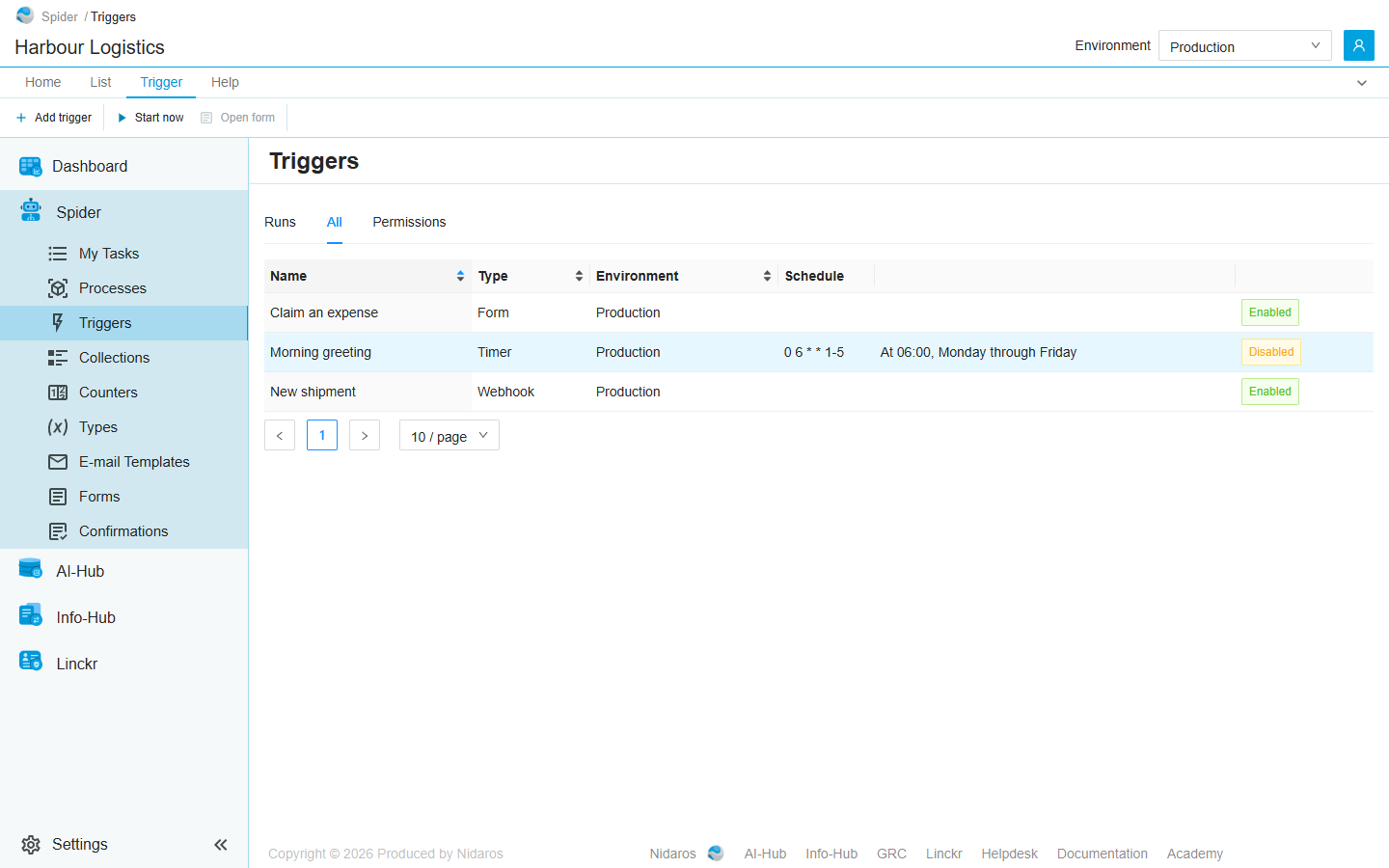
Every trigger of the environment selected in the header, by name:
| Column | Shows |
|---|---|
| Name | The trigger's name. |
| Type | Its type: Webhook, Timer, Form, or a type from an integration module, such as E-mail trigger. |
| Environment | The environment it belongs to. The runs it starts run there. |
| Schedule | For a trigger that runs on a schedule: the schedule, and what it means in words (At 06:00, Monday through Friday). |
| Enabled or Disabled. A disabled trigger doesn't fire, but you can still start it by hand. |
Double-click a trigger, or select it and click Open, to see and change it: see The trigger. A trigger has no page of its own.
When a colleague adds, changes or deletes a trigger, the list shows it by itself.
Permissions
Who may do what with the organization's triggers and their runs. Pick a user or a group on the left, and set each permission set to Allow, Deny or Not Set:
- Definitions: View definitions, Change definitions, Manage definitions, Start runs and Submit forms.
- Runs: View runs and Manage runs.
A permission set given here holds for every trigger and every trigger run. Triggers have no page of their own, so permissions can't be given for a single trigger. To give one for a single trigger run, use the Permissions tab of its page. See Permissions.
Commands
| Tab | Group | Command | What it does | Disabled when |
|---|---|---|---|---|
| Home, Trigger | New | Add trigger | Adds a trigger: see Add Trigger. On every tab. | |
| Home, List | Open | Open | Opens the selected run's page, or the selected trigger. | Nothing is selected. |
| List | Open | Open in new tab | Opens the selected run in a new browser tab. Runs only. | Nothing is selected. |
| Home, Trigger | Run | Start now | Starts the selected trigger now, as if its time had come, after asking. Spider then opens the trigger run's page. All only. | Nothing is selected, or it is a webhook or form trigger (A webhook or form trigger can't be started by hand). |
| Home, Trigger | Run | Open form | Opens the selected form trigger's form, to fill in and submit. See A form trigger's form. All only. | Nothing is selected, it isn't a form trigger (Only a form trigger has a form), or it is disabled (This trigger is disabled). |
| Home, Trigger run | Run | Abort | Stops the selected trigger run for good, after asking. Runs only. | Nothing is selected, or the run has ended (This run has already ended). A failed run can still be aborted. |
| Home, List | Manage | Delete | Deletes the selected trigger, after asking. All only. | Nothing is selected. |
| Home, List | View | Refresh | Reads the list again. | |
| Home, Permissions | Principals | Add group or user, Remove | Adds a user or group to the Permissions tab, or removes every permission the selected one has here. Permissions only. | Remove: no user or group is selected. |
| Home | Share | Copy link | Copies the link to the selected run, or to this page with its tab, search and filters. |
Start now also works for a disabled trigger, and for one without a schedule: that is how such a trigger runs at all.
The trigger
A trigger is added and changed in a drawer with up to four tabs. Which tabs it has depends on the trigger's type.
Details
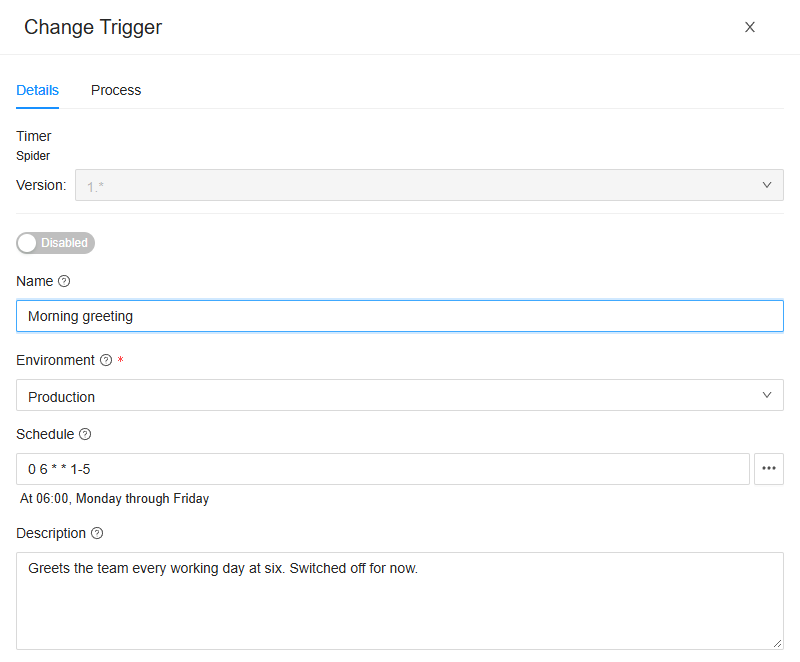
- The type and the integration module it comes from (Spider for the three built-in types), with its Version: the major version of the type the trigger uses, such as 1.*. When the module offers more than one, you can move the trigger to another; inputs and processes the other version can't hold are dropped.
- Enabled or Disabled: whether the trigger fires by itself.
- Name.
- Environment: where the trigger's runs run. It starts on the environment selected in the header.
- Schedule, for a timer and for the types from integration modules: a cron expression, such as
0 6 * * 1-5, with what it means in words below it. Without a schedule the trigger runs only when you start it by hand: No schedule: this trigger only runs when invoked manually. An expression Spider can't read says Schedule is invalid. - Description.
- Screenshots, for the types from integration modules: Off, On failure or Always, whether the trigger's activity logs screenshots of what the agent saw, until you turn them off. They show in the log of the trigger run. See Diagnostics and screenshots.
Inputs
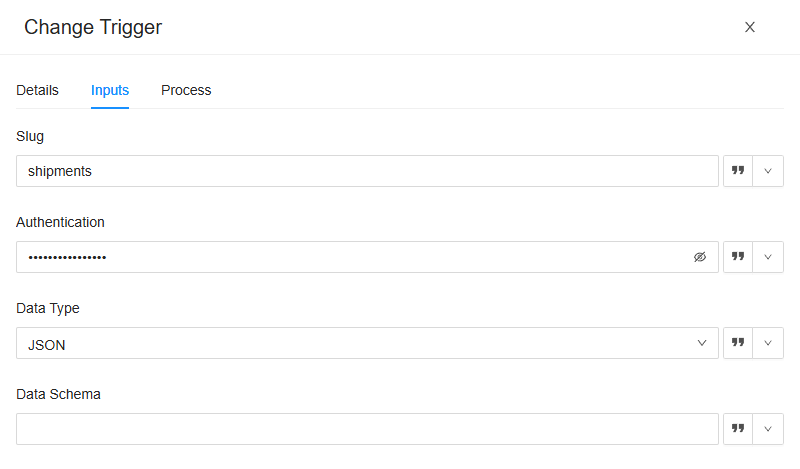
The settings of the trigger's type. A webhook has these:
- Slug: the last part of the webhook's address,
…/organizations/<organization>/webhooks/<slug>, which a system posts its data to. - Authentication: the key the caller must send, as
?api_key=in the address or as the password of Basic authentication. Without one, anybody who knows the address can call it. - Data Type: JSON or XML, what the caller sends.
- Data Schema: optionally, a JSON schema or an XML schema the data must fit. Data that doesn't fit makes the trigger run fail.
A form trigger has one input, Form: the start form of its process that people fill in. Pick the process on the Process tab first (Select a process first). A form the process no longer offers as a start form says so: This form no longer exists or is no longer a start form. Select another form.
A timer has no inputs, and so no Inputs tab. A trigger from an integration module has the inputs its module gives it, such as the connection and the folders of an e-mail trigger. An input that names a connection, a collection or a counter offers the ones the organization has.
Process
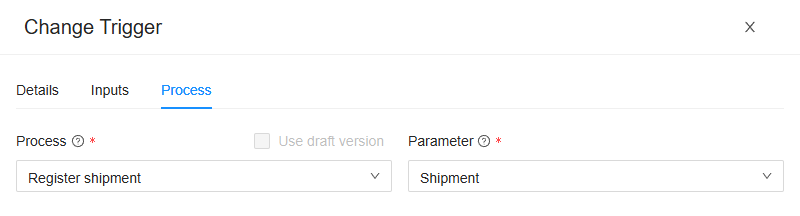
What the trigger starts:
- Process: the process definition to run. Its latest published version runs, or its draft when you tick Use draft version. A definition that was never published has only its draft, and one with no draft only its published version: then the box can't be changed.
- Parameter: the parameter of the process that receives what the trigger produces, such as a webhook's data. Only parameters that can hold it are offered. A timer and a form trigger produce nothing to pass on, and have no Parameter: a form's fields reach the run as its parameters themselves.
Processes
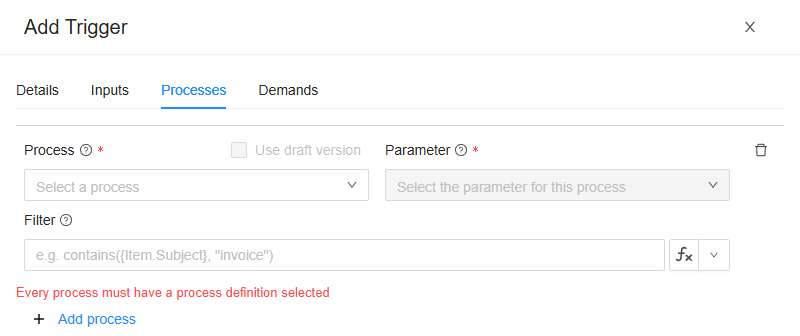
A trigger type that produces several items at once, such as e-mails, has a Processes tab instead, and starts a run for each item. Each row has a Process and a Parameter, as above, and a Filter: an expression, such as contains({Item.Subject}, "invoice"), that decides whether that process runs for an item. For each item the trigger runs the first process whose filter holds.
- Add process adds a row, and the bin removes one. A trigger always keeps at least one.
- Drag a row to change the order.
- A row without a filter is the default, for the items no other row takes. It must be the last row: A process without a filter is the default and must be the last process. Without a default, an item no filter takes starts nothing.
Demands
For the types from integration modules: what an agent must have to run this trigger's activity, each demand with its Key and the Value it must have. Add demand adds one. It works like a process definition's demands: see Process definition. A timer, a webhook and a form run inside Spider and never reach an agent, so they have no Demands tab.
Drawers and dialogs
Add Trigger
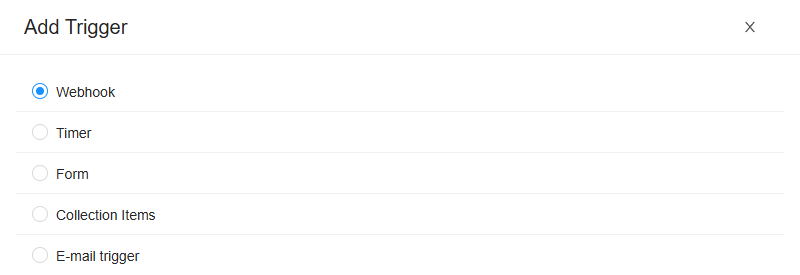
- Pick the trigger's type: Webhook, Timer or Form, or one of the types the organization's integration modules offer. Click Next.
- Fill in its tabs: see The trigger.
- Click Add. It is enabled once the trigger has a name, an environment, a valid schedule (or none), its required inputs and a process for every row. The page then shows the All tab, with the new trigger.
Change Trigger
Open shows the trigger in the same drawer, without the choice of type. Change what you need and click Change, or Cancel.
When you may see the trigger but not change it, the drawer is titled after the trigger, shows everything read-only, and has only Close.
A form trigger's form
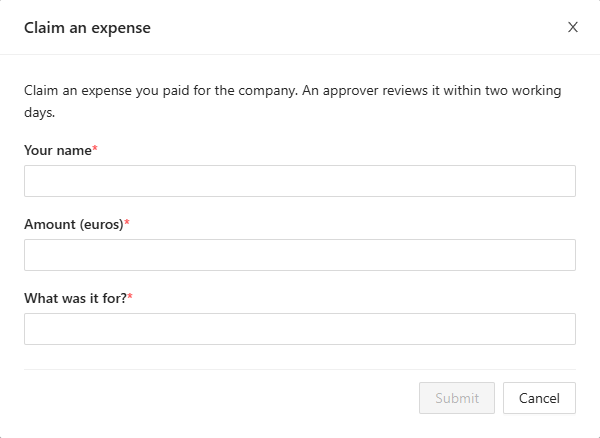
Open form shows the form as the people who use it see it, at the form's own width. Fill it in and click its submit button to start a run: The form was submitted. Cancel, or the dialog's ×, closes it without starting anything. Escape doesn't close it, so you can't lose what you typed by accident.
- A form that changed since you opened it is loaded again, empty: The form changed since it was opened, and has been loaded again. Fill it in once more.
- A form that can't be opened says why: This form can't be opened right now: its trigger is disabled, or its process has changed, or This form is no longer available.
People usually fill in a form trigger's form from a dashboard: see the form widget in the chapters on dashboards.
Confirmations
- Start Trigger: Are you sure you want to start this trigger?
- Delete Trigger: Are you sure you want to delete this trigger?
- Abort Trigger-run: Are you sure you want to abort this trigger-run?
Click Yes to go ahead, or No.
Related chapters
- Trigger run
- Triggers in Part II: which trigger to use, and building a process for one.
- Process definition: the processes triggers start, and their forms and parameters.
- Environments
- Lists and The ribbon