
2.36.24
Issue actions
The actions support can take on an issue: send an e-mail, create a ticket in Zammad, or retry what failed. An action is defined once, here, and then run from an issue by hand, or suggested or run by a rule.
How to get there
- From Administration's Settings: Actions, in the Issues group.
Permission
The page needs View issues, which opens an action read-only. Add action, changing an action and Delete need Manage issue rules, actions and priorities. Both are in the Business support section of Administration's Permissions, and Full access allows them too. See Permissions.
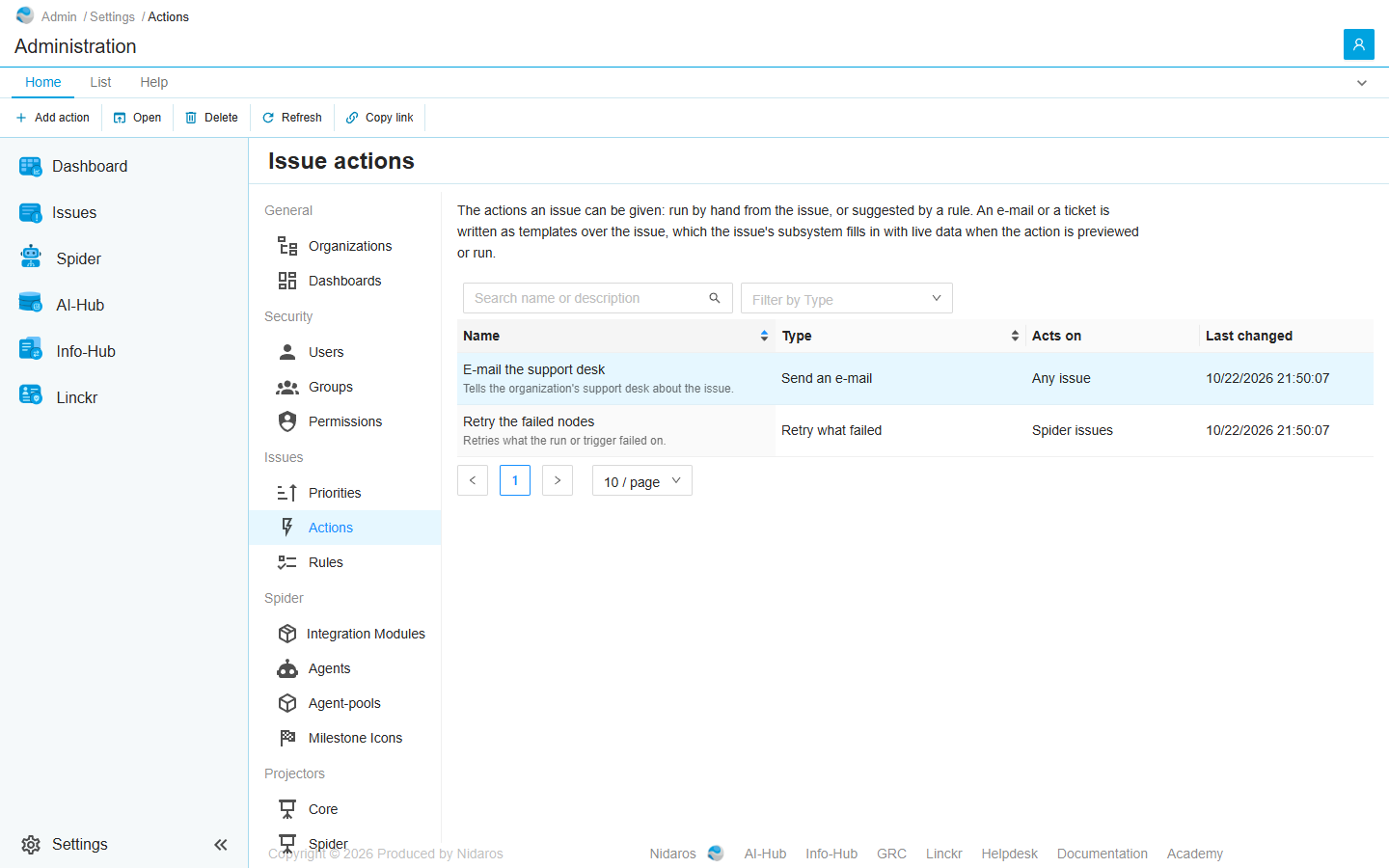
The list
| Column | Shows |
|---|---|
| Name | The action's name, with its description under it. Issues and rules show it by this name. |
| Type | What it does: Send an e-mail, Create a Zammad ticket or Retry what failed. |
| Acts on | Any issue, or Spider issues for one of Spider's own actions. |
| Last changed | When it was last saved. |
Type in Search name or description to find an action, or use Filter by Type. Click Name or Type to sort.
Double-click an action, or select it and click Open, to see it or change it: see The action.
The types
| Type | What it does |
|---|---|
| Send an e-mail | Sends an e-mail about the issue, to fixed addresses, to the support address of the issue's organization, or both. |
| Create a Zammad ticket | Creates a ticket in Zammad for the issue. Every later ticket action on the same issue adds its message to that ticket, as an internal note. The customer has to be known in Zammad already. |
| Retry what failed | Retries every failed node of a failed run, each from its latest failed attempt, or a failing trigger's latest failed run. It acts on Process run failed and Trigger failed issues only, and needs no settings. |
An e-mail and a ticket are written as templates over the issue, which Spider fills in with the issue's data when the action is previewed or run: see Templates.
Commands
| Tab | Group | Command | What it does | Disabled when |
|---|---|---|---|---|
| Home, List | New | Add action | Adds an action: see The action. | |
| Home, List | Open | Open | Opens the selected action. | Nothing is selected. |
| Home, List | Manage | Delete | Deletes the selected action, after asking. | Nothing is selected, or you may not delete this one. |
| Home, List | View | Refresh | Reads the list again. | |
| Home | Share | Copy link | Copies the link to this page. |
Drawers and dialogs
The action
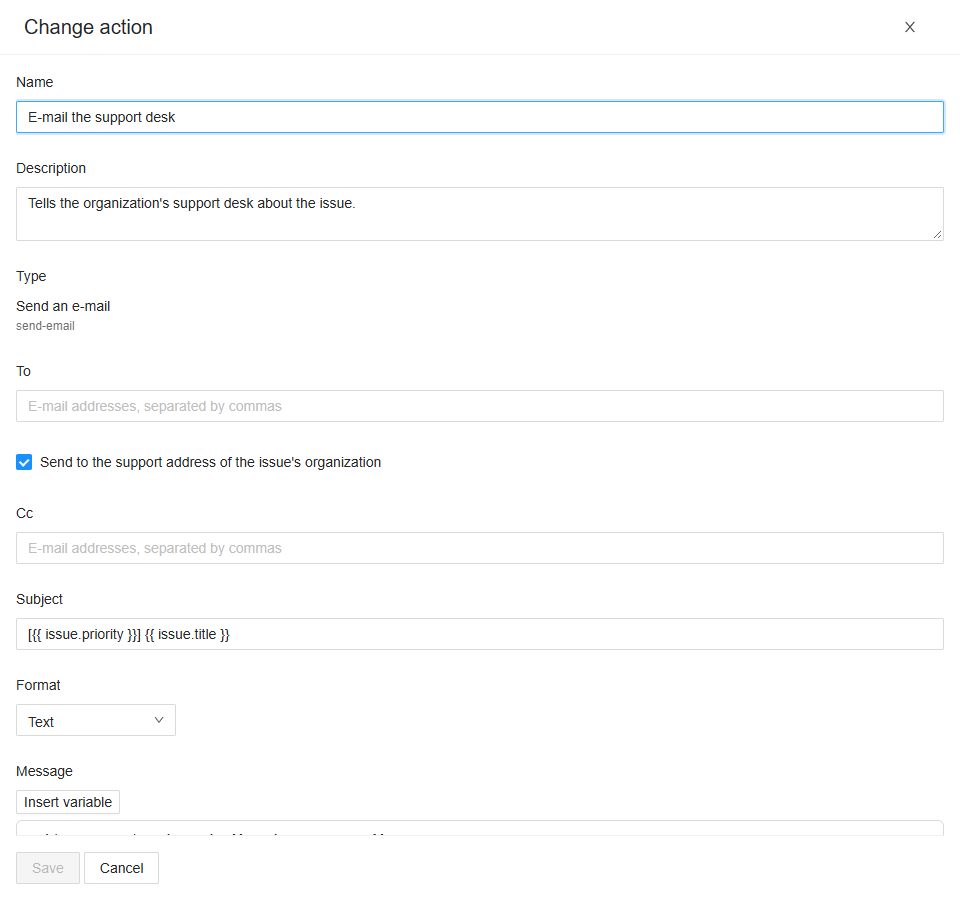
Titled Add action, Change action, or Action when you may only read it.
- Name: the name issues and rules show it by. At most 200 characters.
- Description: what it is for, optional.
- Type: what it does. The type can't be changed once the action is added.
Then the settings of its type.
Send an e-mail:
- To: e-mail addresses, separated by commas.
- Send to the support address of the issue's organization: the address on the organization's Overview. Then To may stay empty. An issue of a shared agent has no organization, and so no support address.
- Cc: e-mail addresses, separated by commas, optional.
- Subject: a template, on one line.
- Format: Text or HTML.
- Message: a template.
Create a Zammad ticket:
- Group: the Zammad group, by name.
- Customer: the e-mail address of a customer Zammad knows.
- Priority: empty for Zammad's default, or a priority by its name in Zammad, such as 2 normal.
- Title: a template, on one line.
- Format and Message, as for an e-mail.
Retry what failed has no settings.
Save saves the action (The action … is saved.), Cancel leaves it as it was. A setting that isn't right is marked under its field, such as 'x' is not an e-mail address.
When someone else saves or deletes the action while you have it open, a banner says so: Reload shows it as it is now, and loses what you changed.
Templates
The subject, title and message are Liquid templates: {{ issue.title }} writes the issue's title. Insert variable, above the message, offers the names, as does typing {{ in it:
| Name | Is |
|---|---|
issue.title, issue.message, issue.reason | The issue's title, its latest message and the reason Spider gives. |
issue.kind, issue.priority | Its kind and its priority. |
issue.opened, issue.lastOccurred | When it was raised, and when it last happened. |
issue.occurrences, issue.episodeCount | How often it happened, and how often since it last recovered. |
issue.subject.name | The name of what the issue is about: the run, the trigger or the agent. |
environment.name, environment.isProduction | The environment. |
organization.supportEmail | The organization's support e-mail address. |
links.issue | A link that opens the issue in Spider. |
Spider fills in more, depending on the kind: run.reference, run.status, definition.name, definition.version, node.name, trigger.name, triggerRun.reference, agent.name and organization.slug, and links such as links.run and links.agent. A failed run also has its variables, as variables.<name>.
Dates take a format: {{ issue.opened | Date: 'yyyy-MM-dd HH:mm' }}.
A name the issue has no value for is written empty, and the preview warns about it.
Preview
Below the settings of an e-mail or a ticket: pick one of the latest 50 issues in Choose an issue, of any state and environment, and see the action written out for it, with its data as it is now. Nothing is sent. Render again writes it out again after a change. When you may change the action, the preview shows it as you have it in the drawer, before you save it.
Delete the action
Delete the action …? An action a rule still uses can't be deleted; take it out of those rules first. Click Yes to delete it, or No. When rules use it, Spider says which: Rules use this action. Remove it from 'Failed runs in production' first.