
2.36.24
User
One user of the organization: their details, the groups they are in, and what they may do. You add the user to groups here, send their invite again, and see why they may or may not do something.
How to get there
- From Users: double-click a user, or select them and click Open.
- From a group's Members tab: open a member who is a user. See Group.
Permission
You open a user's page from the Users page, and need what that page needs. Some commands and tabs need more:
| Command or tab | Permission sets that allow it |
|---|---|
| Add to group, Remove (on Groups) | Manage organization |
| Resend invite | Manage organization |
| The Effective permissions tab | View organization settings, View permissions, Manage permissions or Manage organization |
| View as this user | A global administrator's permission to view the app as another user, given in Administration |
Commands you may not use are not shown; see Permissions.
Tabs
The page opens on Details. Its tabs don't show in the page's address, so a link to the page always opens on Details.
Details
The user's Email, Name, Given name, Surname and Status, read-only. The names come from the user's Microsoft account, once they have signed in. The status is the user's own: Active once they have accepted an invite to any organization.
Groups
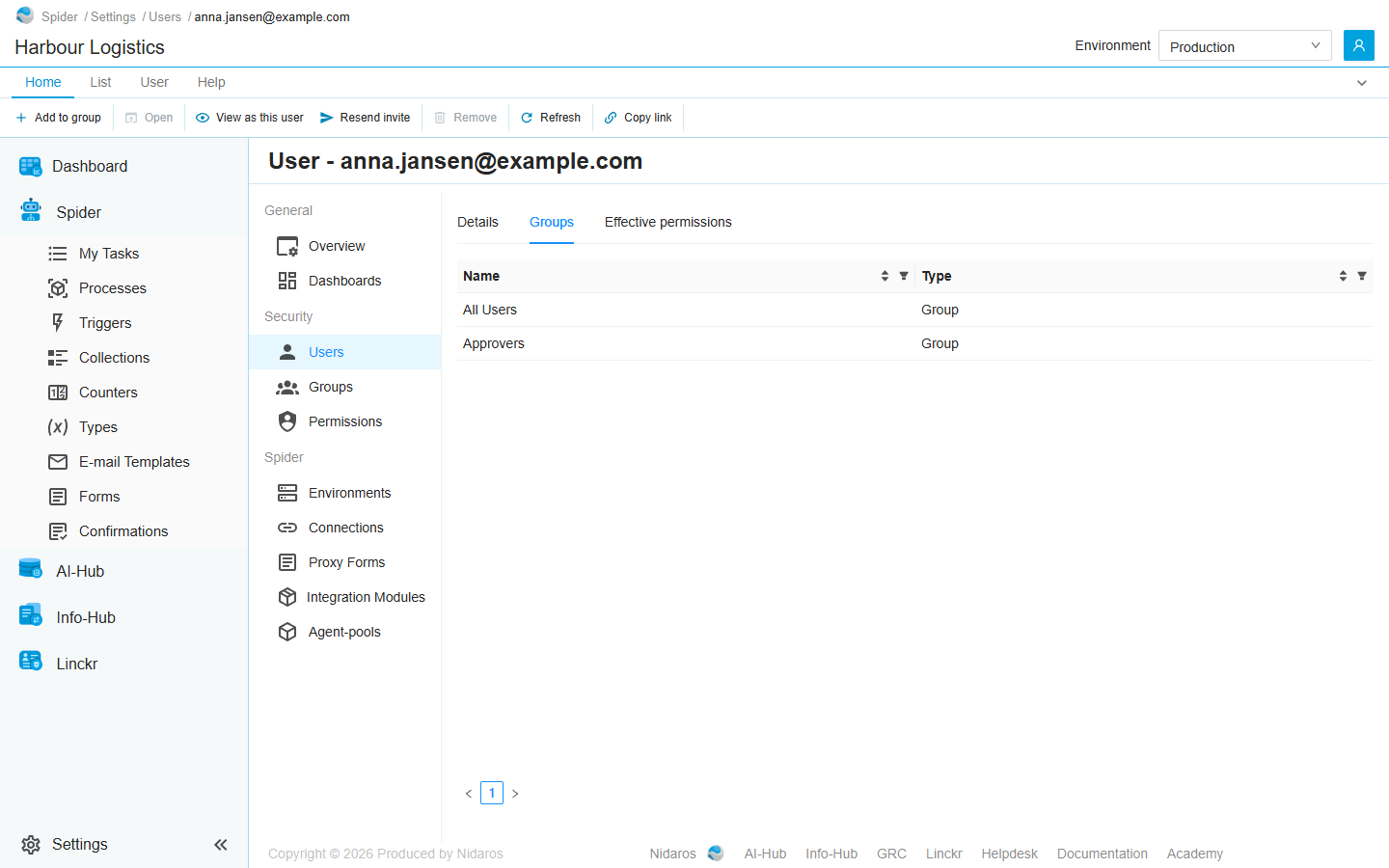
The groups of this organization the user is in, by Name, with their Type. Everyone is in All Users. Type in a column's filter to find a group, or click its header to sort.
Double-click a group, or select it and click Open, to see the group's page: see Group. Add to group adds the user to other groups: see Add to group. Remove takes the user out of the selected group, after asking (Are you sure you want to remove this membership?).
Effective permissions
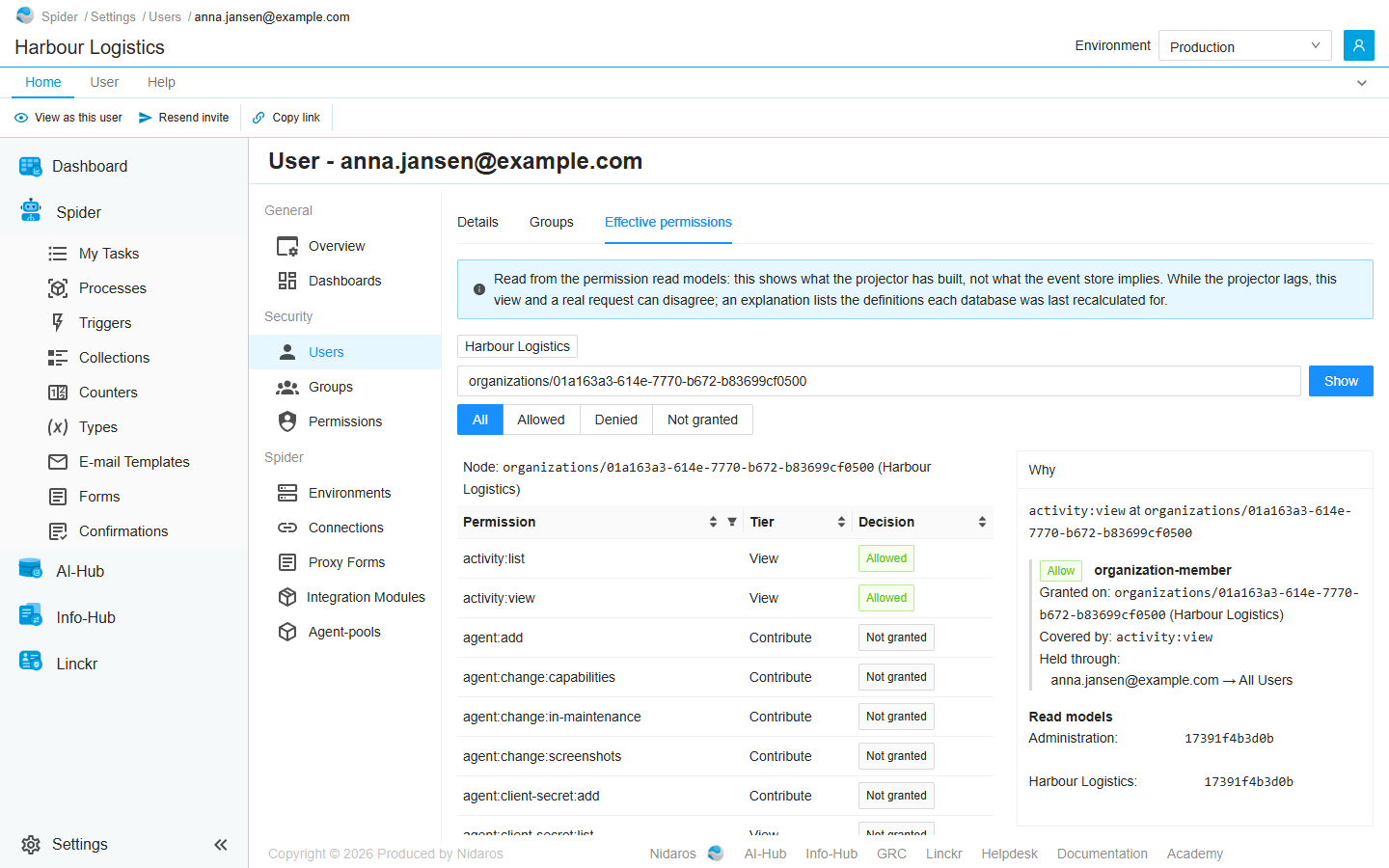
What the user may do in the organization, permission by permission, and why. Use it when a user says they can't do something, or can do something they shouldn't.
- The node: the place the permissions are worked out for, as a path such as
organizations/<key>/process-definitions. It starts on the organization, which its button above the box also picks. Type a path inside the organization and click Show to see the permissions for one kind of item, or for one item. - The table: every Permission Spider knows, its Tier (View, Contribute or Manage) and the Decision: Allowed, Denied or Not granted. All, Allowed, Denied and Not granted above the table filter it. Type in the Permission column's filter to find one.
- Why: click a permission to see the grants behind its decision. Each grant shows its effect (Allow or Deny), the permission set (such as
organization-member, which is Member), where it was given (Granted on), the permission in it that covers this one (Covered by), and how the user holds it (Held through), such as anna.jansen@example.com → All Users. No grant reaches this permission at this node means nothing allows or denies it.
The blue note at the top says where the answer comes from: Spider's permission read models. While those are being rebuilt, the tab and what the user can really do may briefly disagree. Read models, under the grants, says for each database whether it is current, stale or never recalculated.
To see the whole app as the user sees it, use View as this user.
Commands
| Tab | Group | Command | What it does | Disabled when |
|---|---|---|---|---|
| Home, List | New | Add to group | Adds the user to a group. Groups only. | |
| Home, List | Open | Open | Opens the selected group's page. Groups only. | Nothing is selected. |
| List | Open | Open in new tab | Opens it in a new browser tab. Groups only. | Nothing is selected. |
| Home, User | Account | View as this user | Shows the whole app as this user sees it, read-only: see View as this user. | |
| Home, User | Account | Resend invite | Sends the user's invite to this organization again. | The invite has been accepted (Only a pending invite can be sent again). |
| Home, List | Manage | Remove | Takes the user out of the selected group, after asking. Groups only. | Nothing is selected, or you may not remove this one. |
| Home, List | View | Refresh | Reads the groups again. Groups only. | |
| Home | Share | Copy link | Copies the link to this page. |
View as this user
View as this user reloads the app as the user sees it: the same menu, pages and commands, with their permissions. Nothing can be changed meanwhile. A banner at the top says whose view you have, with Stop viewing as this user to go back.
It is not offered on your own page, nor while you are already viewing as someone. A user who has never signed in can't be viewed: The app can't be viewed as … The user may not have signed in yet, or holds permissions you don't.
When the user is deleted
When someone deletes the user while you have their page open, the page says so, with a link back to the list. See Changed elsewhere.
Related chapters
- Users
- Group
- Permissions: giving permissions for the whole organization.
- Permissions, in Part I: how permissions add up.