
2.36.24
Designer
Where you build a process: you place its nodes on the canvas, connect them, and give each one its settings. You always work on the definition's draft, and nothing you do reaches the runs until you publish it.
This chapter describes the page. How to build a process with it is in Part II: Building processes, starting with The designer and its palette.
How to get there
- On a process definition's page, click Edit (on Home, or on the Process definition tab). See Process definition.
- On the Processes page's All or Drafts tab, select a definition and click Edit on the Process definition tab.
- After you import a definition, Spider opens it here.
Edit creates a draft when the definition has none: Spider asks first, with This will create a new draft version, based on the latest version. Do you want to continue? A definition that already has a draft opens straight away, with its draft.
Permission
You need Change definition on the definition, or Change definitions for every definition. Without it the page opens read-only: you can look at every node's settings, but not change, add or move anything.
- Publish needs Manage organization: no other permission set allows publishing.
- Start needs Start run or Start runs.
- Export needs Export definition, Export definitions or Manage definition.
See Permissions.
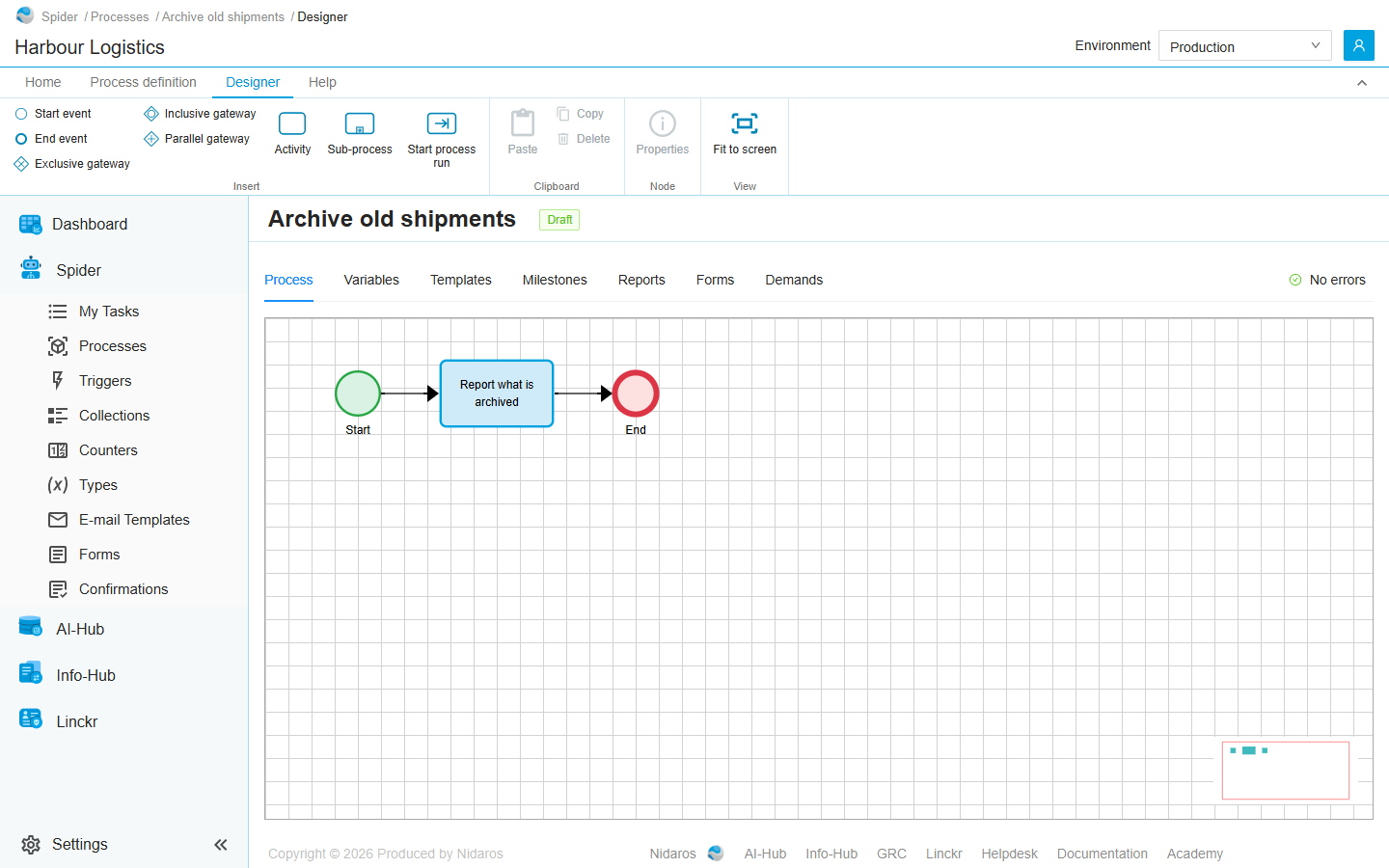
The page
The header shows the definition's name, and its version or a Draft tag. On the right of the tabs, the check of the process says No errors, or how many errors and warnings it found. Click it to see them, each with the node it is about. A node with a problem also gets a coloured border on the canvas. The check runs again a moment after every change.
The tabs under the header are those of the process definition's page, with the process on its first tab and the definition's parts on the others, all editable: Process, Variables, Templates, Milestones, Reports, Forms and Demands. They have no ?view= in the address, so the page always opens on Process.
The canvas
- Select a node or a connection by clicking it. Hold Ctrl to select more than one, or drag a box around them while holding Shift.
- Move a node by dragging it.
- Connect two nodes by dragging from a node's port (the dot on its side) to the other node. An event or an activity has one way in and one way out; a gateway has four ports, in any direction.
- Zoom with the mouse wheel, and pan by dragging the canvas. Fit to screen shows the whole process. The small map in the bottom right corner shows which part of the process you are looking at.
- Open a node's settings with the i on the node you selected, or with Properties on the ribbon.
- Delete what you selected with the Delete key. The key asks nothing, and there is no undo; Delete on the ribbon asks first.
- Copy and paste activities with Ctrl+C and Ctrl+V (on a Mac, Cmd), while the canvas has the focus. Only activities are copied. You can paste into a sub-process of the same definition, and the copies land where the pointer is.
Every change is saved at once
There is no Save button. Every change you make, on the canvas or in a node's settings, is saved to the draft straight away; a text you type is saved a second after you stop typing.
When someone else changes the draft while you have it open, a banner says so. Reload shows the draft as it is now, and loses nothing of yours: Every change you made is saved already. See Live updates.
Commands
| Tab | Group | Command | What it does | Disabled when |
|---|---|---|---|---|
| Home, Designer | Insert | Activity | Opens the Activities list, to add an activity: see below. | |
| Designer | Insert | Start event, End event | Adds the event. | |
| Designer | Insert | Terminate end event | Adds an end event that ends the whole run. Only on the canvas of a sub-process. | |
| Designer | Insert | Exclusive gateway, Inclusive gateway, Parallel gateway | Adds the gateway. | |
| Designer | Insert | Sub-process | Adds a sub-process, with a canvas of its own. | |
| Designer | Insert | Start process run | Adds a node that starts a run of another process. | |
| Home, Designer | Clipboard | Paste | Pastes the activities you copied. | You copied nothing yet. |
| Home, Designer | Clipboard | Copy | Copies the selected activities. | No activity is selected. |
| Designer | Clipboard | Delete | Deletes what is selected, after asking: A deleted node takes its connections with it. | Nothing is selected. |
| Designer | Node | Properties | Opens the selected node's settings. | Not exactly one node is selected. |
| Designer | View | Fit to screen | Zooms the canvas so the whole process fits. | |
| Home, Process definition | Run | Start | Starts a run, of the draft or the published version. See Start a run. | |
| Process definition | Design | Properties | Changes the definition's Name and Description. | |
| Home, Process definition | Design | Publish | Publishes the draft as a new version. See below. | The process has errors (Fix the errors in the process before publishing it.), or has not been checked yet. |
| Process definition | Data | Export | Downloads the definition as a package file, to import elsewhere. | |
| Home | Share | Copy link | Copies the link to this page. |
Warnings don't keep you from publishing; errors do.
Without permission to change the definition, the Insert and Clipboard groups are not shown. The Variables, Templates, Forms and other list tabs add the List tab, with their own Add and Delete. The Designer tab is there only while the Process tab is shown.
There is no command to throw a draft away.
Drawers and dialogs
Activities
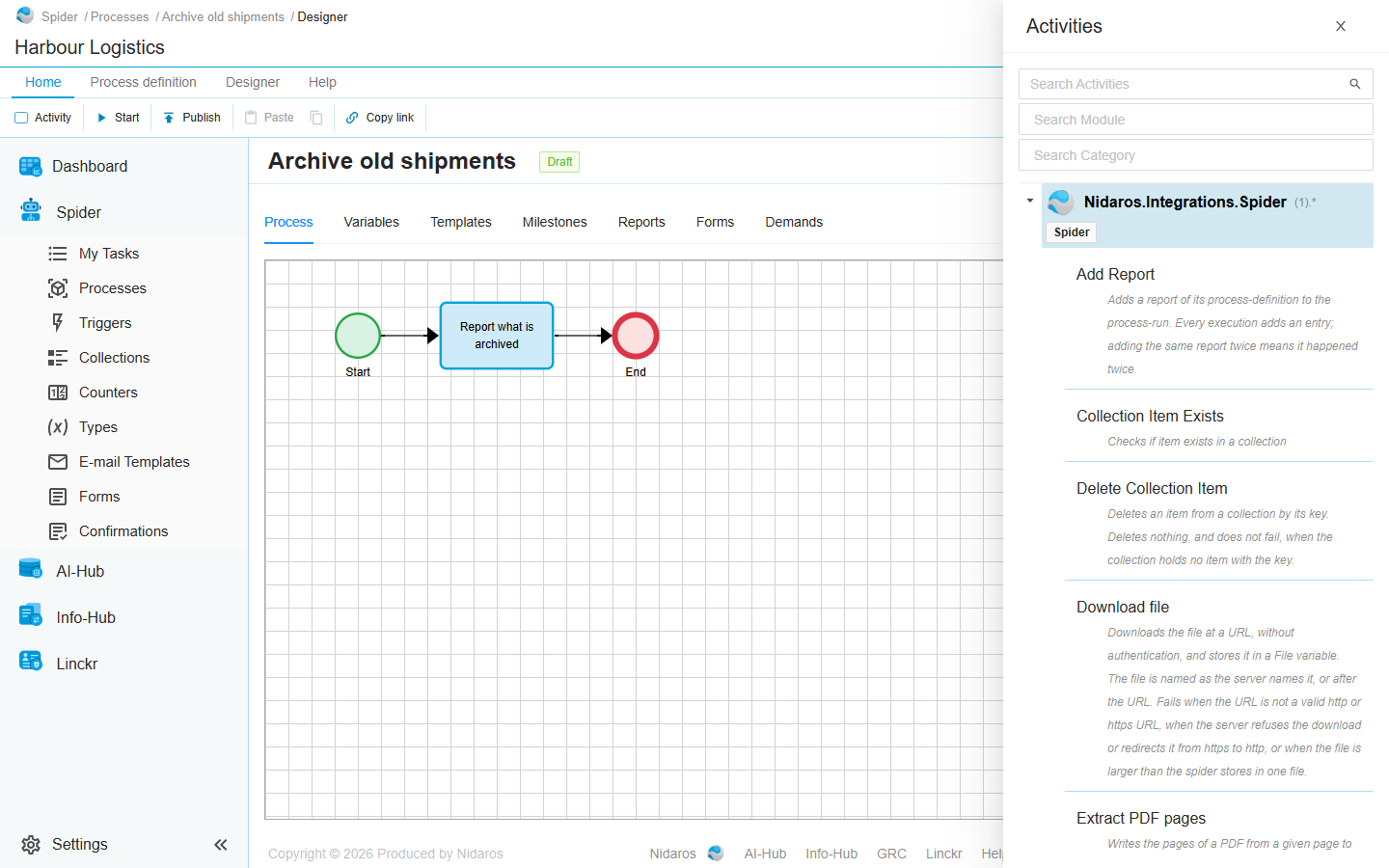
The list of the activities you can add, from every integration module the organization has activated, by module. Search it by name (Search Activities), by module or by category. Click an activity to add it to the canvas, or drag it onto the canvas. The list stays open next to the canvas, so you can add several activities one after another.
When it says No activities available — activate an integration module for this organization first., ask an administrator to activate a module.
A node's settings
Each kind of node opens its own drawer:
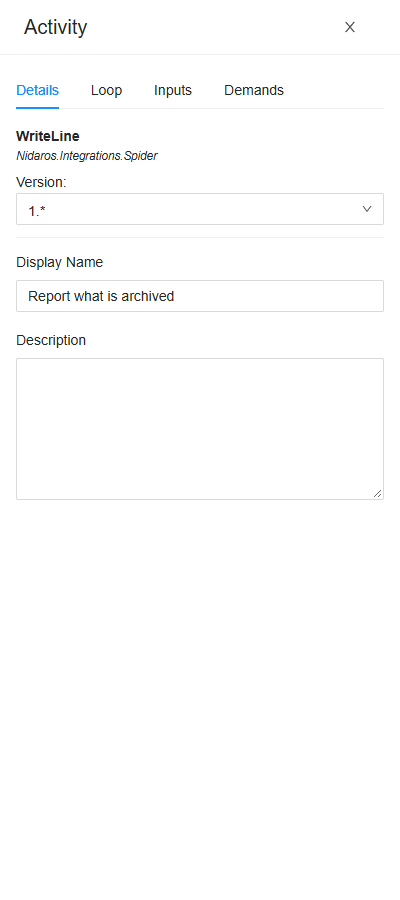
Activity: its Details (the activity, its module, its Version, a Display Name and a Description), Loop (Repeat for each item of a list), Inputs, Outputs (which variable each result goes into, for an activity that has results) and Demands (what an agent must have to run it).
Gateway: its Type (exclusive, inclusive or parallel), a Display Name, a Description, and the Conditions of its outgoing connections, in the order they are checked. Each connection gets a Condition, a Label shown on the canvas, and one can be the Fallback.
Start Event, End Event: a Display Name and a Description. An end event inside a sub-process also chooses, under When reached, between ending the sub-process and ending the whole run.
Sub-process: its Details, with Open sub-process to edit its own canvas, Loop, Inputs (its parameters) and Outputs (its variables, back to the process around it).
Start process run: which Process to start and when (Start at), its parameters, Loop, and Outputs: the run it started.
The drawers have no Save button: what you change is saved at once. Close the drawer with its × or Escape.
A sub-process opens in a wide drawer of its own, with its canvas, its Designer commands above it, and its variables. A breadcrumb at its top leads back to the process around it.
Select Semantic Version
Publish asks which version number the draft gets:
- Major (X+1.0): for a change that people should notice, such as new parameters.
- Minor (X.Y+1): for a small change.
Click OK to publish. Spider then opens the new version's page. From now on, runs started without Use draft version run this version.
Process Definition
Properties changes the definition's Name and Description. Click Change to save, or Cancel.
Related chapters
- Process definition: the definition's page, with its versions and runs.
- Processes: every definition, and its drafts.
- Part II: Building processes: how to build a process.