
2.36.24
Drawers and dialogs
To add or change something, Spider opens a drawer or a dialog over the page. The page stays behind it, greyed out, and you return to it when you are done.
Drawers
A drawer slides in from the right, with a form to fill in. Clicking Add process on the Processes page, for example, opens the Process drawer:
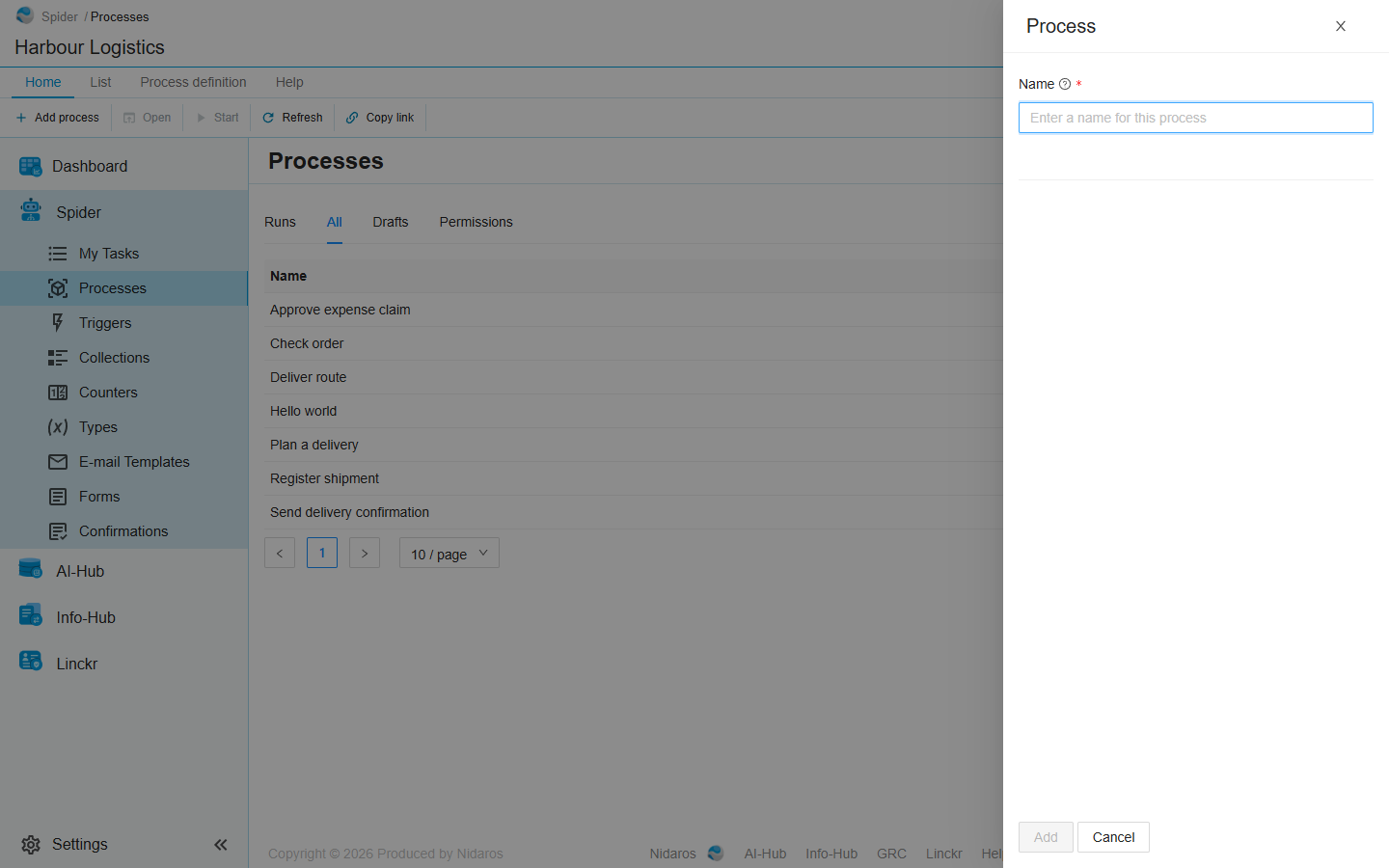
- A label with a red asterisk is a field you must fill in.
- The question mark next to a label explains the field when you point at it.
- The buttons are at the bottom. A drawer covers the ribbon, so it keeps its own buttons: Add, Save or Ok to finish, and Cancel to close the drawer without saving anything.
- The first button stays grey until the form is complete and valid, and, when you change an item, until you have changed something.
- Enter in a field does the same as the first button.
To close a drawer without saving, click Cancel, the × at its top right, or the greyed-out page beside it, or press Escape.
When you may view an item but not change it, its drawer opens read-only: its fields are grey, and its only button is Close.
Dialogs
A dialog opens in the middle of the screen. Dialogs ask you something short, such as a confirmation, or let you pick something, such as a user or a group to add.
Confirmations
Every command that deletes or removes something, or can't be undone, asks you to confirm it first:
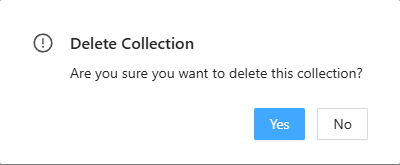
Click Yes to go ahead, or No to leave everything as it is. Some confirmations ask you to choose how to go ahead. Their first button is named after the command, and Cancel leaves everything as it is.
Saving your work
Most changes are saved by the drawer's or dialog's first button, or by Save in the ribbon on a page that edits, such as an e-mail template. A few controls save as soon as you change them, such as an Enabled switch in a list.
Leaving a page does not ask about changes you haven't saved, except in a dashboard you are editing. Save before you go to another page.
When someone else changes the item you are editing at the same time, Spider tells you: see Live updates.
When something goes wrong
When Spider can't do what you asked, it says so in a message at the top of the screen, such as Something went wrong, please try again. When a whole page can't be shown, it shows Oops, something went wrong. with a Retry button. If it keeps happening, contact the Helpdesk.