
2.36.24
Processes
Every process of the organization, in one place: the runs, the published process definitions, and the drafts. You start, follow and retry runs here, and add, import and export definitions.
How to get there
- From the main menu: Spider › Processes.
- From the breadcrumbs of a process definition's page or a run's page: Processes.
Permission
To open the page and see its definitions you need View definitions, or Member or View processes for the whole organization. The Runs tab needs Member or View processes.
Some commands need more:
| Command | Permission sets that allow it |
|---|---|
| Add process | Manage definitions |
| Import | Manage definitions and Change definitions |
| Start | Start runs, or Start run on the definition |
| Edit | Change definitions, or Change definition on the definition |
| Export | Export definitions, Manage definitions, or Export definition on the definition |
| Retry, Abort | Resolve issues and run actions |
| The Permissions tab | Manage definitions, Manage runs, View permissions or Manage permissions |
Manage organization allows all of them. Member lets you see everything here, but not start, change or add anything. Commands you may not use are not shown; see Permissions.
Views
Runs
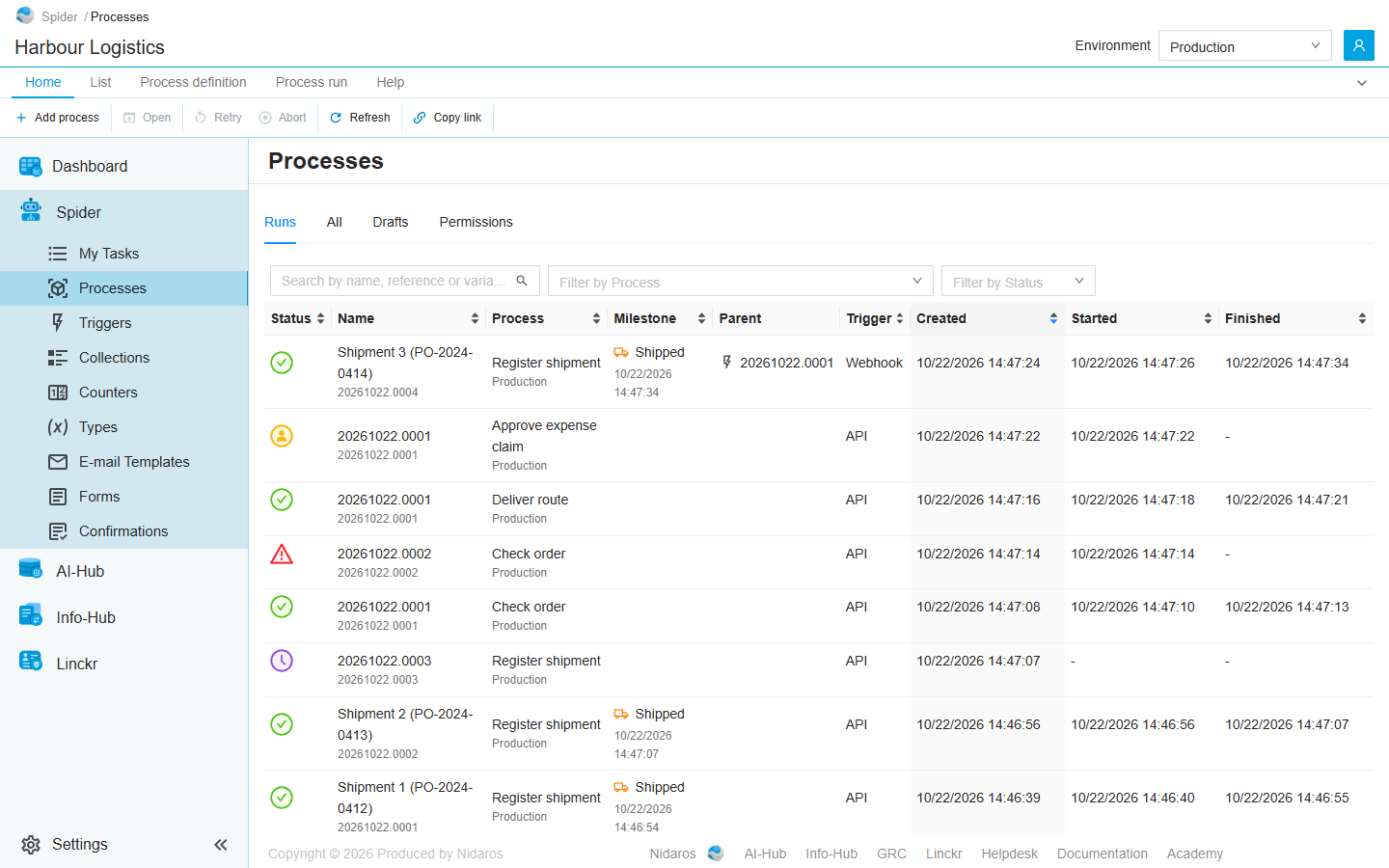
The organization's process runs, newest first, in the environment selected in the header (see Environments). This is the tab the page opens on.
| Column | Shows |
|---|---|
| Status | The run's status, as an icon. Point at it to see the status, or the time a scheduled run starts. See Statuses. |
| Name | The run's name, with its reference below it. |
| Process | The process definition, with the run's environment below it. |
| Milestone | The milestone the run reached last, and when. |
| Parent | The run or trigger run that started this run, if any. Click it to open that run. |
| Trigger | What started the run: API for a run started by hand or through the API, Process for a run another run started, or the kind of trigger. |
| Created, Started, Finished | When the run was created, started and finished. |
- Search by name, reference or variable value finds runs by their name, their reference, or a value one of their variables holds.
- Filter by Process shows the runs of one definition. Filter by Milestone then shows the runs that last reached one of its milestones.
- Filter by Status shows the runs in one status.
Runs started while you look at the list are not added to it by themselves: a Load 1 more button offers them. See Live updates.
Double-click a run to open it: see Process run.
All
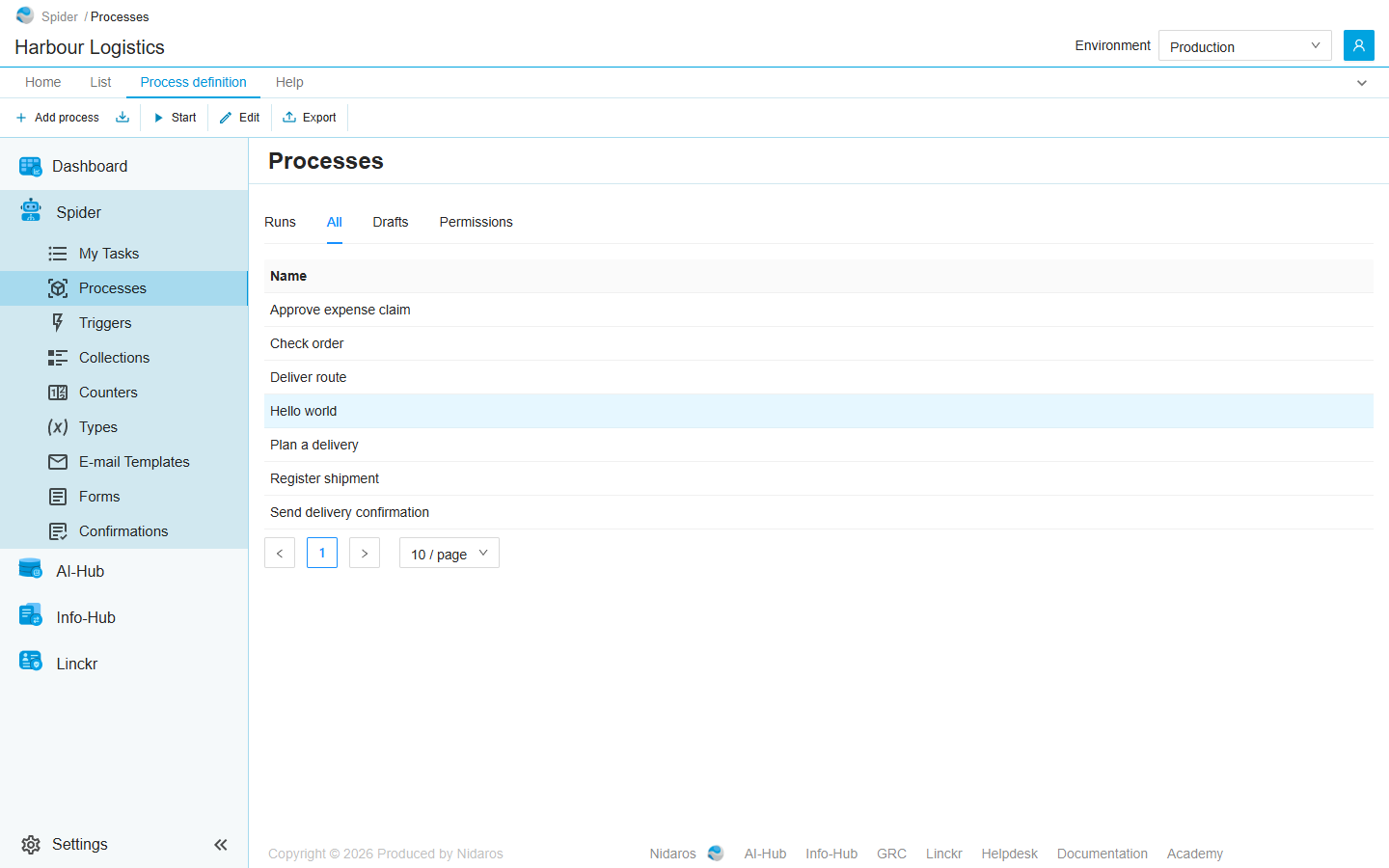
Every published process definition, by name, at its latest version. Double-click one to open its page: see Process definition.
Drafts
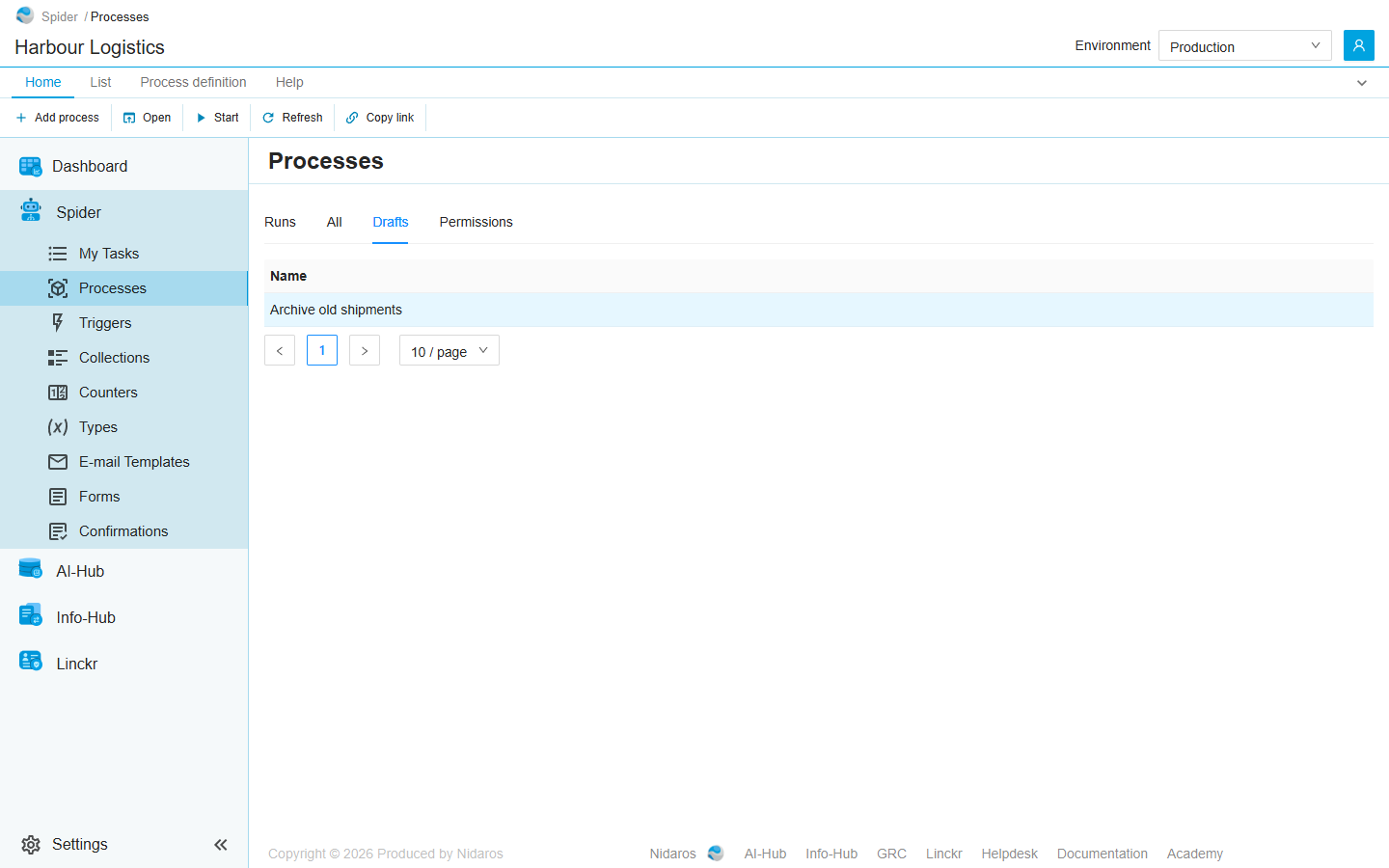
Every definition with a draft that has not been published yet: a new definition that was never published, or a published one that someone is changing. A definition with a draft of a newer version is on both All and Drafts. A draft leaves this tab when it is published.
A definition you add appears here, until you publish it.
Permissions
Who may do what with every process definition and run of the organization. Pick a user or a group on the left, and set each permission set to Allow, Deny or Not Set:
- Definitions: View definitions, Change definitions, Manage definitions, Export definitions and Start runs.
- Runs: View runs, Change runs and Manage runs.
A permission set given here holds for every definition and every run. To give one for a single definition or run, use the Permissions tab of its page. See Permissions.
Commands
| Tab | Group | Command | What it does | Disabled when |
|---|---|---|---|---|
| Home, Process definition | New | Add process | Adds a process definition: see below. | |
| Process definition | New | Import | Imports a definition from a package file: see below. | |
| Home, List | Open | Open | Opens the selected definition or run. | Nothing is selected. |
| List | Open | Open in new tab | Opens it in a new browser tab. | Nothing is selected. |
| Home, Process definition | Run | Start | Starts a run of the selected definition: see Start a run. All and Drafts only. | Nothing is selected, or you may not start this one. |
| Process definition | Design | Edit | Opens the selected definition in the Designer, and creates a draft first if it has none. All and Drafts only. | Nothing is selected, or you may not change this one. |
| Process definition | Data | Export | Downloads the selected definition as a package file. All and Drafts only. | Nothing is selected, or you may not export this one. |
| Home, Process run | Run | Retry | Retries the selected failed run. Runs only. | Nothing is selected, or the run has not failed (Only a failed run can be retried). |
| Home, Process run | Run | Abort | Stops the selected run for good, after asking. Runs only. | Nothing is selected, or the run has ended (This run has already ended). |
| Process run | Go to | Definition | Opens the version of the definition the selected run ran. Runs only. | Nothing is selected. |
| Process run | Go to | Parent | Opens the run that started the selected run. Runs only. | Nothing is selected, or no other run started it. |
| Home, List | View | Refresh | Reads the list again. | |
| Home, Permissions | Principals | Add group or user, Remove | Adds a user or group to the Permissions tab, or removes every permission the selected one has here. Permissions only. | Remove: no user or group is selected. |
| Home | Share | Copy link | Copies the link to the selected row, or to this page with its tab, search and filters. |
Process definitions can't be deleted.
Drawers and dialogs
Process
Add process asks for the new definition's Name. Click Add: the definition is added as a draft, and the page shows the Drafts tab. Open it there, and Edit it to build its process. See Drawers and dialogs for a picture of it.
Start Process Run
See Start a run.
Import Process
Imports a process definition that was exported, from this organization or another one, as a package file (.package.json).
- Pick the file, or drag it onto the dialog.
- Check what the dialog found in it:
- Exported from and Exported on: where the file comes from.
- Name: the name the definition gets here. It must be one the organization doesn't use yet.
- This package cannot be imported, when the process uses an integration module the organization has not activated, an activity the module no longer offers, or a type of an integration module the organization doesn't have.
- A table for each kind of thing the process uses: Connections, Collections, Counters, Types, E-mail Templates and E-mail Layouts. For each, the Status says whether this organization has it (Matched), has one by that name that differs (Different), or lacks it (Missing). Under Action, choose to use the one the organization has, to map it to another one (Map to…), or to create it (Create new).
- Integration Modules: the modules the process uses, and whether they are Activated here.
- Click Import. Spider creates what you asked it to, adds the definition, and opens it in the Designer, as a draft.
Connections are created without environment fields, and e-mail templates and layouts are created empty. Fill them in before running the process. (A created e-mail template holds only a comment, and a layout only the place its template goes.)
If the import stops halfway, Spider says what it created already. Importing the same file again uses those, rather than creating them a second time.
What to check after an import, and how the matching works, is in Export and import.
Export
Export downloads the definition as <name>.<version>.package.json. The file holds the process and a description of everything it uses, but no passwords, no connection settings and no e-mail content, so it can be imported in another organization, or on another Spider.
Create new draft version
Edit on a definition without a draft asks first: This will create a new draft version, based on the latest version. Do you want to continue? Click OK to create the draft and open it in the designer.
Abort Process-run
Are you sure you want to abort this process-run? Click Yes to stop the run for good. Retry asks nothing.