
2.36.24
Groups
The organization's groups of users. Give a permission to a group rather than to each of its users: whoever joins the group has it, and whoever leaves loses it.
How to get there
- From the main menu: Settings › Groups, in the Security group.
Permission
To open the page you need View organization settings or Manage organization. Member doesn't include it. Add group needs Manage organization. Commands you may not use are not shown; see Permissions.
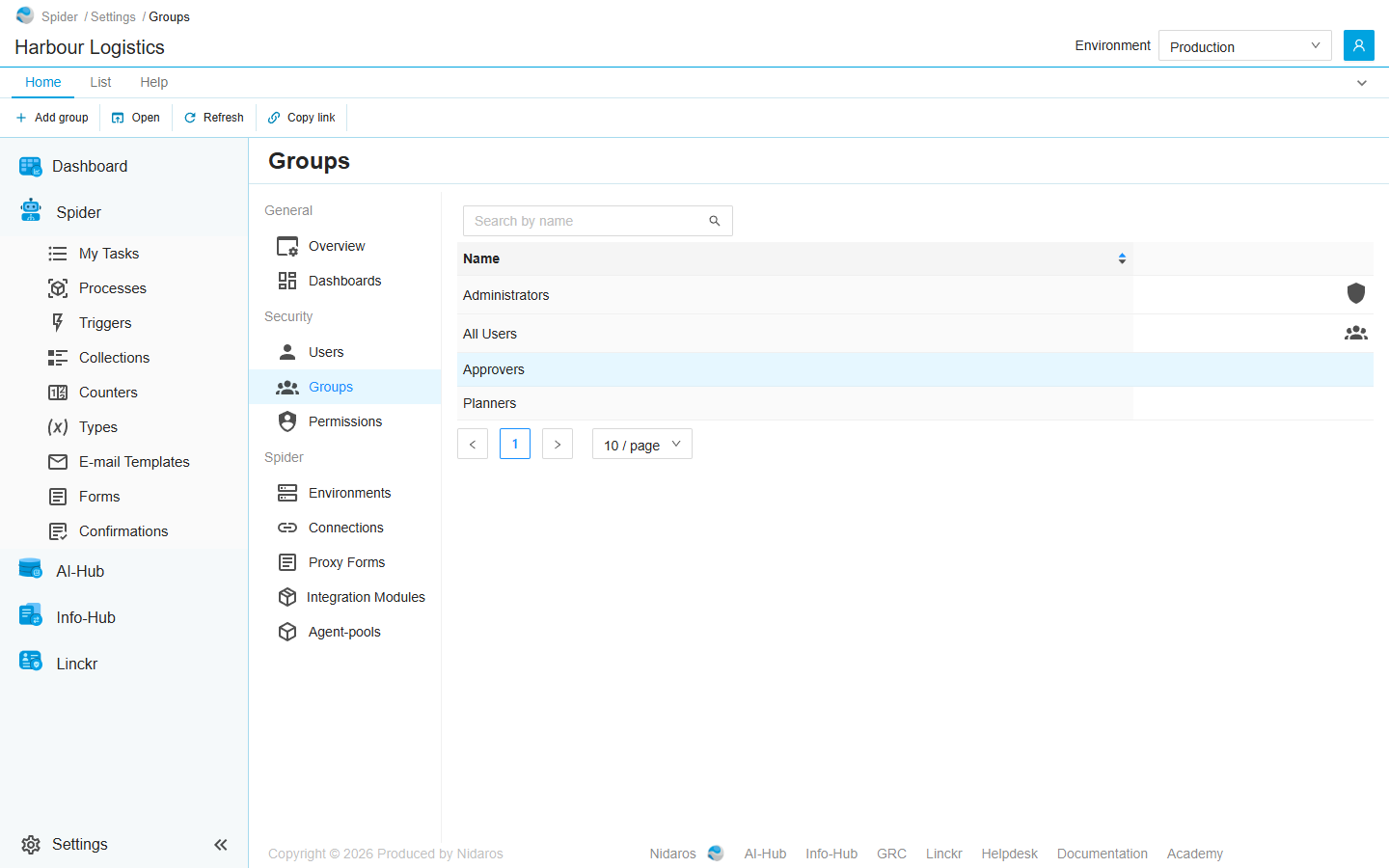
The list
Every group of the organization, by Name. Type in Search by name to find a group, or click the column header to sort.
Every organization has two groups of its own, marked with an icon (its tooltip names it):
- Administrators (Default Administrator Group): has Manage organization, which allows everything in the organization.
- All Users (Default Users Groups): everyone in the organization is in it, from the moment they are invited. It has Member.
Double-click a group, or select it and click Open, to see its page: see Group. When a colleague adds or changes a group, the list shows it by itself.
Commands
| Tab | Group | Command | What it does | Disabled when |
|---|---|---|---|---|
| Home, List | New | Add group | Adds a group: see Add group. | |
| Home, List | Open | Open | Opens the selected group's page. | Nothing is selected. |
| List | Open | Open in new tab | Opens it in a new browser tab. | Nothing is selected. |
| Home, List | View | Refresh | Reads the list again. | |
| Home | Share | Copy link | Copies the link to the selected group, or to this page. |
A group can't be deleted here.
Drawers and dialogs
Add group
- Name: the group's name.
- Description: what the group is for.
Click Add, or Cancel. The new group has no members and no permissions: open it to add members, and give it permissions on the Permissions page, or on the Permissions tab of a list or an item.
When the group can't be added, Spider doesn't say so: check the list afterwards.
Related chapters
- Group: a group's page.
- Users
- Permissions
- Lists