
2.36.24
Permissions
Who may do what in Administration. A permission set given here holds on the whole server: in Administration, and in every organization. The page works like an organization's Permissions page, with Administration's own permission sets.
How to get there
- From Administration's Settings: Permissions, in the Security group.
Permission
The page needs View permissions or Manage permissions. Changing a permission set, and adding or removing a user or group, needs Manage permissions; without it, the page shows every grant, but its boxes can't be changed and the ribbon has no commands. Full access allows both. See Permissions.
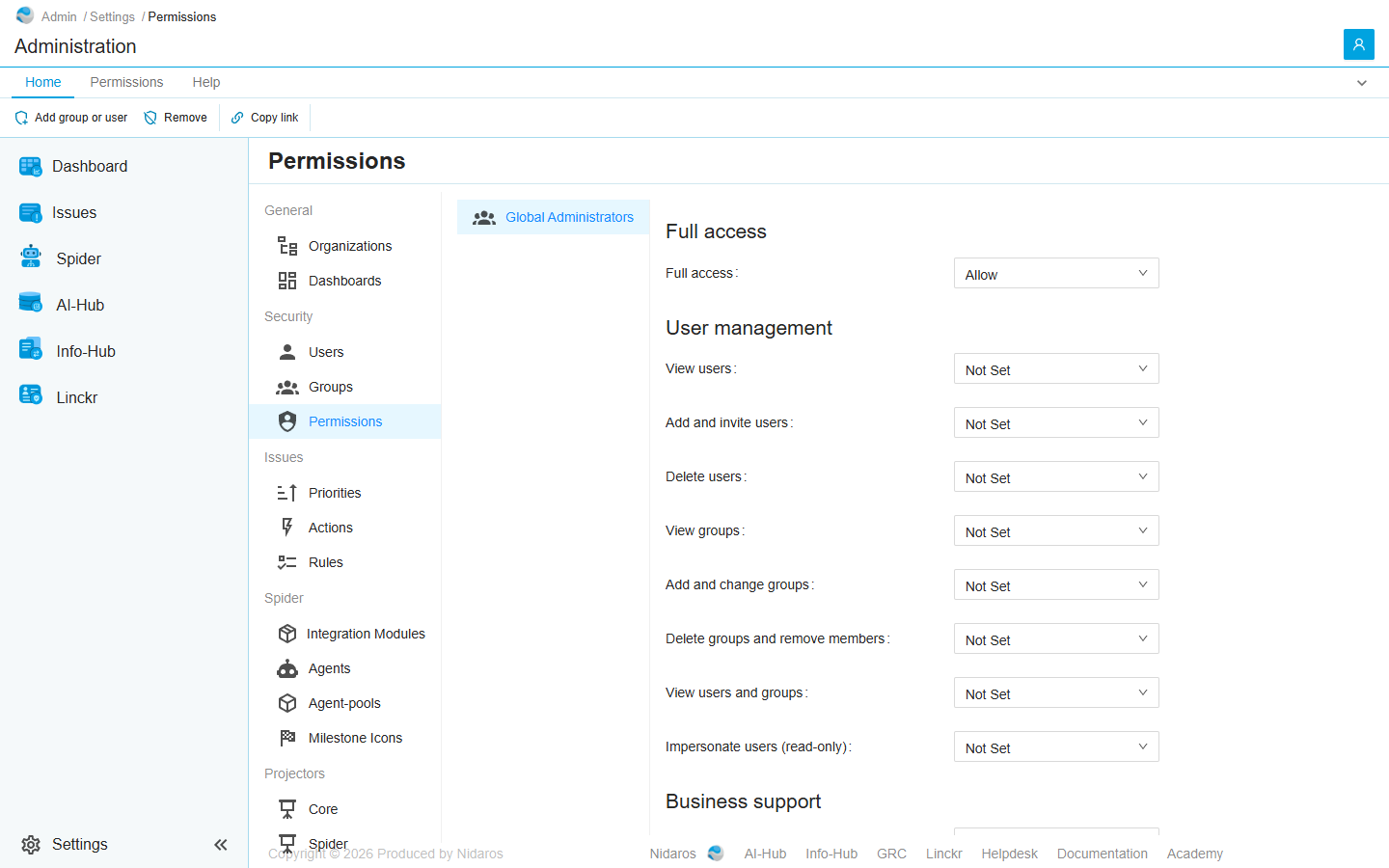
The page
On the left, the users and groups that have permissions here. Pick one to see its permission sets on the right, each set to Allow, Deny or Not Set. A change is saved as soon as you pick it. The user or group you picked is kept in the page's address, so a link to the page opens on it.
A grant here reaches into every organization. Full access allows everything, everywhere; View issues lets its holders read the runs, triggers and agents of every organization that issues are about. Give the narrowest set that does the job.
The permission sets
| Section | Permission sets |
|---|---|
| Full access | Full access: everything, on the whole server. Global Administrators has it. |
| User management | View users, Add and invite users, Delete users, View groups, Add and change groups, Delete groups and remove members, View users and groups, Impersonate users (read-only) |
| Business support | View issues, Resolve issues and run actions, Manage issue rules, actions and priorities: see Issues. |
| Agents | View agents, Add and change agents, Delete agents, View agent-pools, Add and change agent-pools, Delete agent-pools: see Agents. |
| Milestone icons | Manage milestone icons, View milestone icons |
| Platform | Manage organizations, View organizations, Manage integration modules, View integration modules, Manage projectors |
| Organization, Projectors, Platform data | Single permissions, such as List organizations or List trigger types, for when a set gives too much. |
| Permission management | View permissions, Manage permissions |
Some sets allow more than their name says. Delete agents also allows changing an agent's robot account, watching it live and seeing its screenshots; Delete agent-pools also allows revoking a pool's tokens; View agents also shows an agent's robot account and client secrets. Impersonate users (read-only) lets its holders see the whole app as any user sees it, every organization's data included.
A section No longer offered shows only when someone still holds a set Spider no longer offers. It keeps working until you take it away.
Commands
| Tab | Group | Command | What it does | Disabled when |
|---|---|---|---|---|
| Home, Permissions | Principals | Add group or user | Adds a user or group to the list on the left, so that you can give it permission sets: see Add group or user. | |
| Home, Permissions | Principals | Remove | Removes every permission the selected user or group has here, after asking. | No user or group is selected (Select a user or group first). |
| Home | Share | Copy link | Copies the link to this page. |
Drawers and dialogs
Add group or user
Pick a user, or a group of any organization, and click Add, or Cancel. It shows on the left after a moment, with every set Not Set, until you give it one.
Remove user or group
Are you sure you want to remove every permission … has here? Click Yes to remove them, or No. The user or group keeps what it has elsewhere, such as in an organization.
Related chapters
- Permissions, in Part I: how permissions add up.
- User: why a user may or may not do something.
- Permissions, in an organization's settings.