
2.36.24
Agents
Every agent on this Spider server: the computers that run the processes' activities. An agent is either an organization's own, or shared by every organization. You add an agent here, see how each one is doing, and open one to manage it.
An agent comes in one of two ways:
- On its own, added here. It signs in with a client secret from its Credentials tab, and its capabilities are its own.
- Through an agent-pool. An instance registers itself into a pool with one of the pool's tokens, and shows up here by itself, with the pool's capabilities. See Agent-pools.
How to get there
- From Administration's Settings: Agents, in the Spider group.
- From an agent-pool's Members tab, or an issue about an agent.
Permission
The page needs View agents. Add agent needs Add and change agents, and Delete needs Delete agents. They are in the Agents section of Administration's Permissions, and Full access allows them all. Add agent also lists the organizations, which needs View organizations. See Permissions.
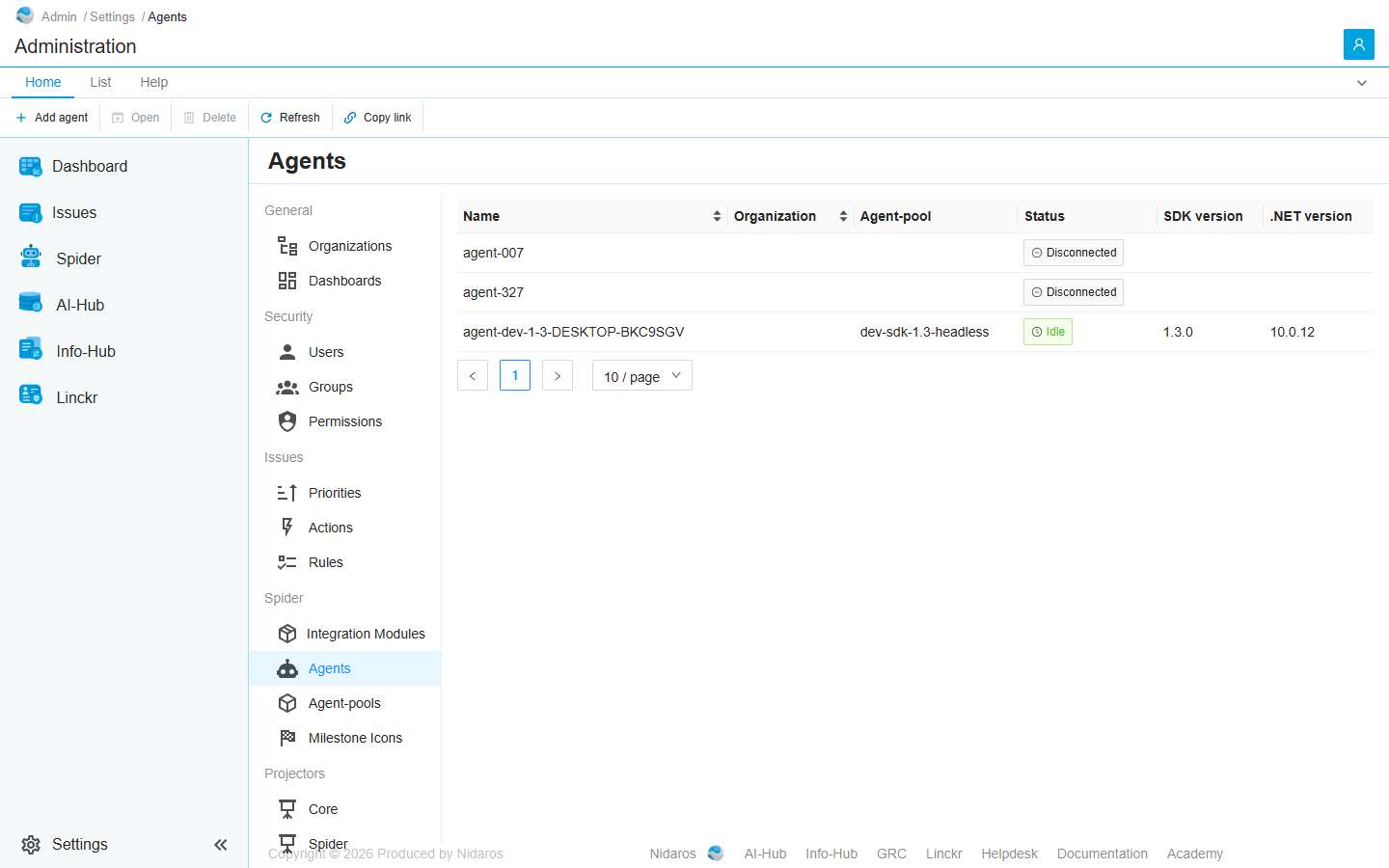
The list
| Column | Shows |
|---|---|
| Name | The agent's name. |
| Organization | The organization that owns it. Empty for a shared agent. |
| Agent-pool | The pool it registered into. Empty for an agent added on its own. |
| Status | What it is doing: see Statuses. |
| SDK version | The version of the Spider SDK it runs. |
| .NET version | The .NET it runs on. |
Click Name or Organization to sort. The statuses change by themselves as the agents work.
Double-click an agent, or select it and click Open, to see its page: see Agent.
Statuses
| Status | Means |
|---|---|
| Disconnected | Not connected to Spider. |
| Connected | Connected, but not registered yet. |
| Idle | Registered, and free to take work. |
| Waiting | Chosen for an activity, which is on its way. |
| Queued | The activity was sent, but hasn't started. |
| Running | Running an activity. |
A status in red means the agent is in maintenance: it takes no new work until someone takes it out again. See Maintenance.
Commands
| Tab | Group | Command | What it does | Disabled when |
|---|---|---|---|---|
| Home, List | New | Add agent | Adds an agent: see Add agent. | |
| Home, List | Open | Open | Opens the selected agent's page. | Nothing is selected. |
| List | Open | Open in new tab | Opens it in a new browser tab. | Nothing is selected. |
| Home, List | Manage | Delete | Deletes the selected agent, after asking. | Nothing is selected, or you may not delete this one. |
| Home, List | View | Refresh | Reads the list again. | |
| Home | Share | Copy link | Copies the link to the selected agent, or to this page. |
Drawers and dialogs
Add agent
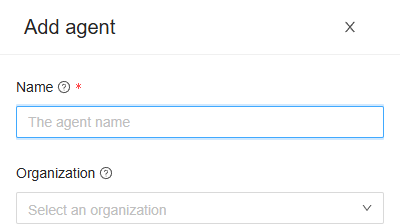
- Name: the agent's name. Two agents added on their own can't share a name.
- Organization: the organization that owns it, or empty for a shared agent, which works for every organization.
Click Add, or Cancel. The agent is Disconnected until it signs in: give it a client secret on its Credentials tab. Its name and organization can't be changed afterwards.
When the agent can't be added, Spider doesn't say so: check the list afterwards.
Delete Agent
Are you sure you want to delete this agent? Its client secrets are deleted with it. Click Yes to delete it, or No.
A connected agent is disconnected at once, and an activity it is running fails. It can't connect again.
Related chapters
- Agent
- Agent-pools
- Issues: an agent put into maintenance raises an issue.