
2.36.24
The ribbon
The ribbon, below the header, holds the commands of the page you are on. Whatever page you open, its commands are always in the same place, sorted the same way.

Tabs
The ribbon's commands are sorted onto tabs. A page shows only the tabs it has commands for, always in this order:
| Tab | What it holds |
|---|---|
| Home | The page's most-used commands, and Copy link. Every page has it. |
| List | The commands of the list on the page: open, add, delete, refresh. See Lists. |
| The resource tabs | One tab for each kind of thing the page shows, named after it: Process definition, Process run, Trigger, Collection, … They hold everything you can do with it. |
| Designer | The tools of the process designer, while you edit a process. |
| Dashboard | The commands of a dashboard. |
| Permissions | Who may do what with this page's items. See Permissions. |
| Help | Links to this page's help, the documentation, the Academy and the Helpdesk. See Help. |
Home always comes first when you open a page. It collects the commands you need most from the other tabs, so on most pages you never need another tab. Switching between a page's own tabs, such as from Runs to All on the Processes page, keeps the ribbon tab you picked. Selecting a row in a list never switches the tab either.
Groups and commands
On each tab, the commands are grouped: New, Open, Run, Manage, View, Share and so on. A thin line separates one group from the next.
A command that acts on one item, such as Open or Start, needs one to be selected first. Until you select a row in the list, it is grey.
A grey command tells you why. Point at it, and its tooltip gives the reason, such as Select an item first, Only a failed run can be retried or Nothing has changed.
A command that you are not allowed to use is not shown at all, rather than shown in grey. See Permissions.
Copy link
Home ends with the Share group, and its one command, Copy link. It copies a link to the selected row of the list, such as one process run. With no row selected, it copies the link of the page you are on, with its tab, search and filters. Spider says Copied to clipboard!.
Send the link to a colleague, and it opens the same page for them, once they are signed in. They see what their own permissions allow.
Expanded and on one line
The ribbon starts on one line, which leaves the page as much room as possible. Click the arrow at the right end of the tabs (Expand the ribbon) to show it in full, with large buttons and the name of every group beneath it:

Click the arrow again (Collapse the ribbon to one line) to go back to one line. Spider remembers your choice in this browser until you next sign in.
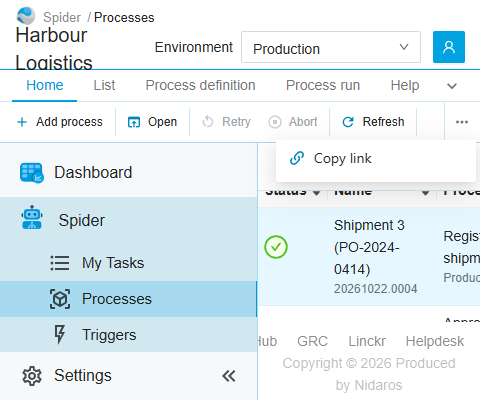
On one line, small commands show only their icon; point at one to see its name. When the window is too narrow for every command, the ones that don't fit move into the … menu (More commands) at the end of the line:
The keyboard
The ribbon's tabs and commands are buttons, so you can reach them with Tab, and use them with Enter or the space bar. The ribbon has no shortcut keys of its own. Lists have a few: see Lists.