
2.36.24
The screen layout
Every page in Spider is built the same way: a header at the top, the ribbon below it, the main menu on the left, and the page itself on the right.
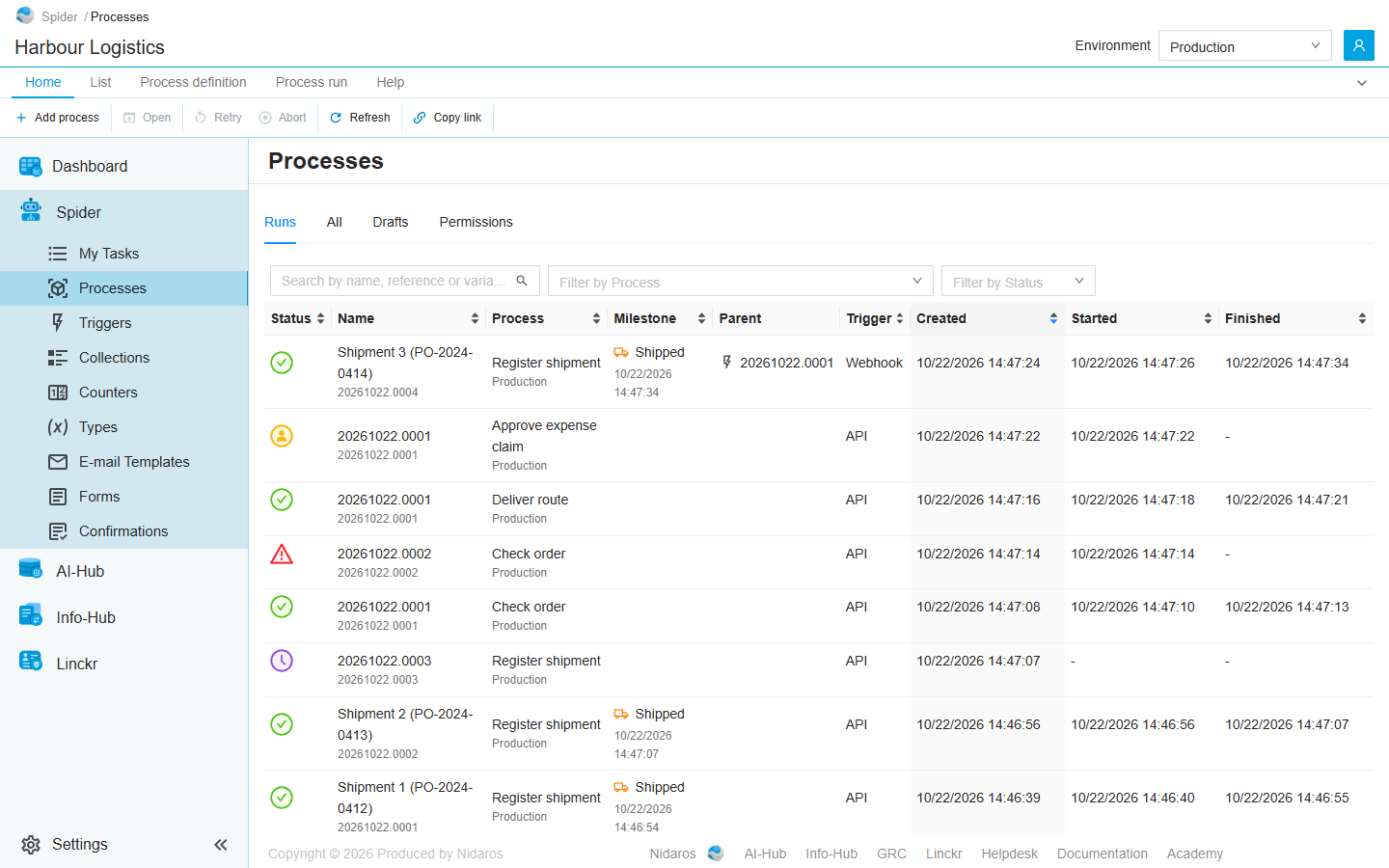
The header
From left to right, the header shows:
- The Nidaros logo. Click it to choose another organization.
- The breadcrumbs, such as Spider / Processes / Check order 1.0: where the page you are on sits. Click a crumb to go up to that page.
- The organization's name, below the breadcrumbs.
- Live updates paused, only while Spider can't receive changes from the server. See Live updates.
- Environment: which of the organization's environments the pages show, such as Production or Test. It is there only when the organization has more than one environment. See Environments.
- The profile button, the round button at the far right. It shows who you are signed in as, lets you choose your language, and has Log out.
The ribbon
Below the header, across the full width of the screen, is the ribbon. It holds the commands of the page you are on, such as Add process, Open or Refresh, sorted onto tabs. The page itself has no buttons of its own. See The ribbon.
The main menu
The main menu on the left lists the pages of your organization:
| Menu item | What you find there |
|---|---|
| Dashboard | Your organization's dashboard, with widgets for its runs, processes and agents. |
| Spider › My Tasks | The forms that processes have given you or your groups to fill in. |
| Spider › Processes | The process definitions, their drafts, and their runs. |
| Spider › Triggers | What starts processes by itself: timers, webhooks, forms and integration modules. |
| Spider › Collections | Lists of keys and values that processes read and write. |
| Spider › Counters | Numbers that count up, such as a number for every shipment. |
| Spider › Types | The data types that processes use for their variables. |
| Spider › E-mail Templates | The e-mails that processes send, and their layouts. |
| Spider › Forms | The legacy forms of the previous Spider. |
| Spider › Confirmations | The legacy confirmations of the previous Spider. |
You see only the items you are allowed to open: see Permissions. The AI-Hub, Info-Hub and Linckr groups belong to other Nidaros products and are empty in Spider.
At the bottom of the menu are:
- Settings, the organization's settings, for those who may see them.
- «, which narrows the menu to its icons, to give the page more room. Click it again to widen the menu.
The page
A page starts with its header: the title, and sometimes a subtitle or tags, such as a definition's version or a run's status.
Many pages show their content on tabs below the header. On the Processes page, for example, the tabs are Runs, All, Drafts and Permissions. The tab you are on is part of the page's address (?view=all), so a link to the page opens the same tab.
Some pages open a drawer or dialog on top of themselves, to add or change something.
The footer
The footer at the bottom of the page links to the Nidaros website, the other Nidaros products, the Helpdesk, the documentation and the Academy. See Help.
Organization settings
Settings at the bottom of the main menu opens the organization's settings. They have a menu of their own, next to the main menu:
| Group | Pages |
|---|---|
| General | Overview (the organization's name, slug and support e-mail address) and Dashboards. |
| Security | Users, Groups and Permissions. |
| Spider | Environments, Connections, Proxy Forms, Integration Modules and Agent-pools. |
You see only the groups and pages you are allowed to open.
Administration
Members of the Spider administration organization work in Administration, which looks after Spider as a whole rather than one organization. Its header shows Administration instead of an organization's name, and its main menu has Dashboard and Issues. Its Settings hold the organizations, the users and groups, the permissions, the issue settings, the agents and the integration modules shared by every organization: see the settings menu in the page reference.