
2.36.24
Process run
One run of a process: how it went, which nodes it ran and what they logged, its diagram, its variables, its files, and the runs it started. When a run fails, this is where you find out why, and where you retry it.
How to get there
- From the Processes page's Runs tab: double-click a run, or select it and click Open. See Processes.
- From a process definition's Runs tab. See Process definition.
- Right after you start a run: Spider opens its page.
- From another run's Children tab, or from a trigger run's.
A link to a run's log can name the node to show: the address then ends in ?view=logs&node=….
Permission
To open a run you need View run on that run, or View runs for every run of the organization. The page also shows the run's process definition, so you need to be allowed to see that too. Member, which everyone in the organization has, allows both.
Some views and commands need more:
| What | Permission sets that allow it |
|---|---|
| The Logs, Variables and Files tabs | Member or View processes |
| Changing a variable | Change run or Change runs |
| Retry, Abort, Retry node and Retry from here | Resolve issues and run actions |
| Cancel node | Manage organization |
| Screenshots | View issues |
| Start now and Reschedule, on a scheduled run | Start run or Start runs, on the run's definition |
| The Permissions tab | View permissions, Manage run or Manage permissions |
Manage organization allows all of them. Commands you may not use are not shown; see Permissions.
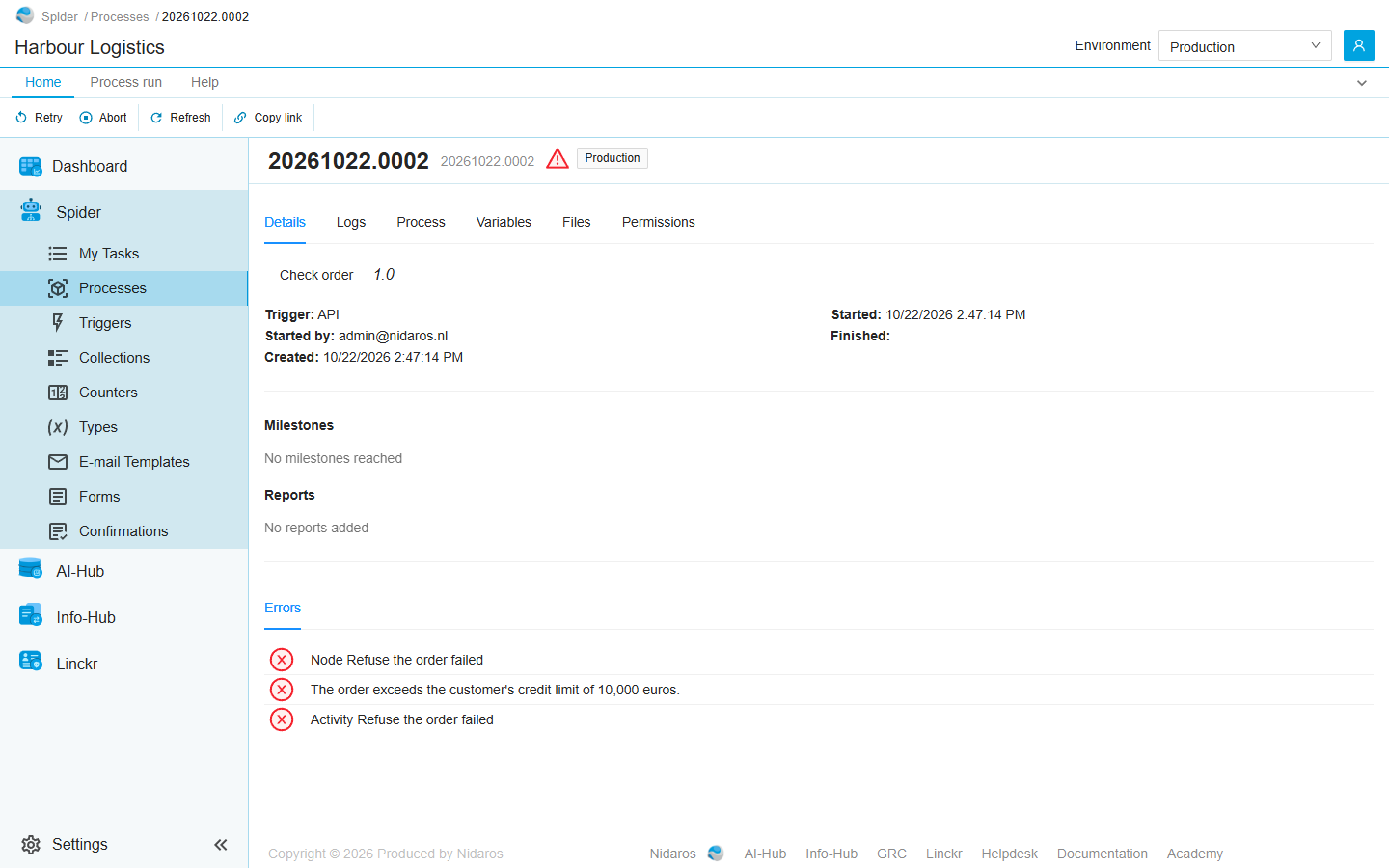
The page header
The header shows the run's name, its reference (such as 20261022.0002), and three tags:
- The status, as an icon: see Statuses.
- The environment the run ran in. It is orange for a test environment. See Environments.
- The milestone the run reached last, when it has reached one.
Views
Details
The run at a glance:
- The process definition and its version, such as Check order 1.0, or a Draft tag for a run of a draft. Click the name to open that version.
- Trigger: what started the run, such as API for a run started by hand or through the API, or the kind of trigger that started it.
- Started by: the person who started it, when a person did.
- Created, Scheduled for (for a run that was given a time to start), Started and Finished.
- Milestones: the milestones the run reached, oldest first, with the time each was reached.
- Reports: the reports the run added, with their time and tags.
- Errors and Warnings, when there are any: the run's own failure messages, and every node's log lines at that level. Click a node's line to open its log.
Logs
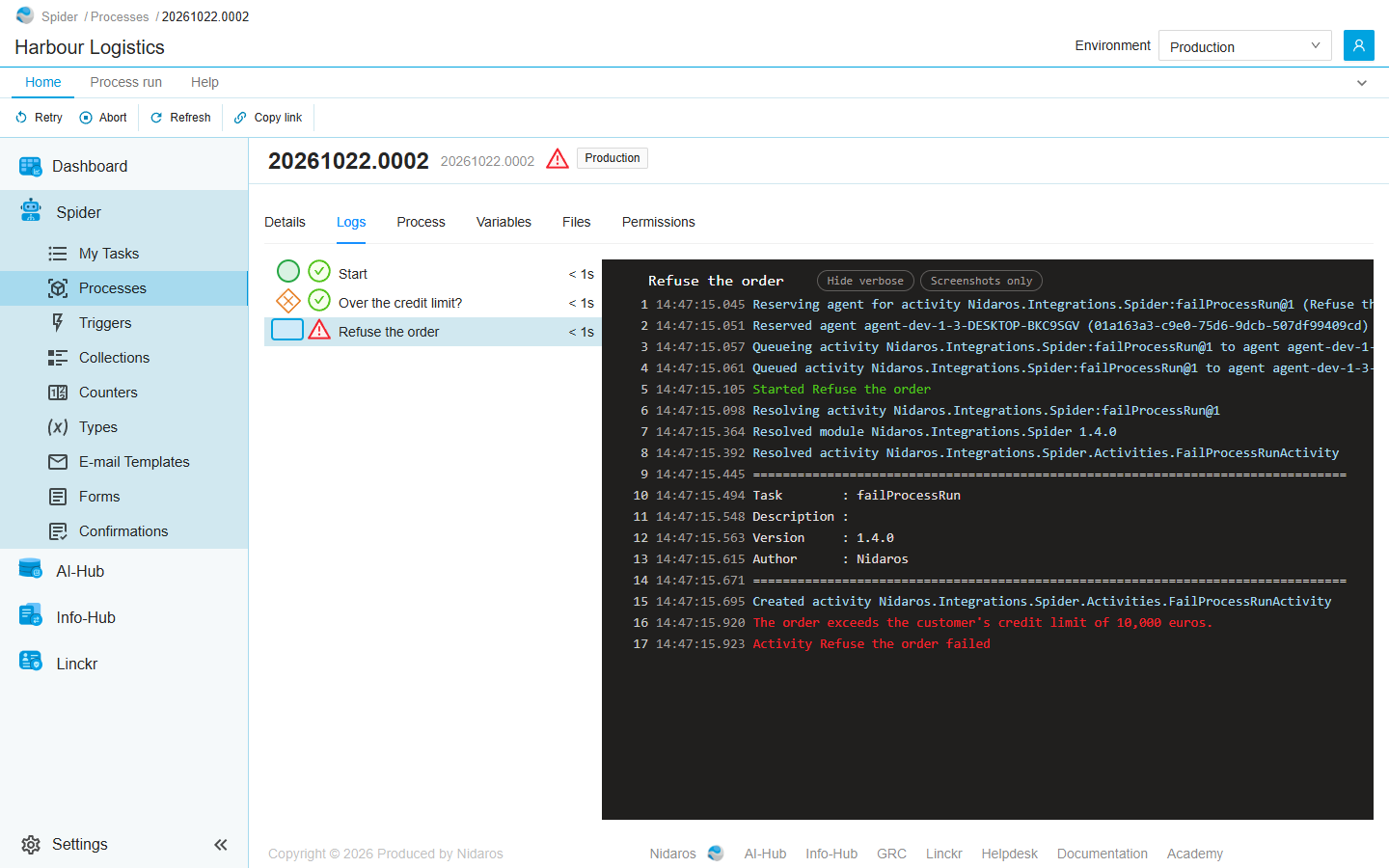
On the left, every node the run has run, in order:
- Each node shows its kind, its status, its name, and how long it took. The time keeps counting while a node runs.
- A node in a loop is listed once per iteration (Iteration 2 of 5), and a retried node once per attempt (Attempt #2). A sub-process lists its own nodes below it.
- A node shown dimmed was undone by Retry from here: the run was retried from an earlier node.
Click a node to show its log on the right. Until you do, the page shows the node that ran last, and follows the run as it moves on to the next one.
The log shows a line number, the time, and the message, coloured by its level:
| Level | Colour |
|---|---|
| Started, Finished | Green |
| Error | Red |
| Warning | Orange |
| Information | White |
| Verbose | Light blue |
| Screenshot | Purple, with a camera icon and a View link |
Hide verbose hides the verbose lines, and Screenshots only shows only the screenshot lines. The line numbers stay as they were, so you can tell where lines were left out.
While the run is busy, new lines appear at the bottom as they are written. The log follows them as long as you are scrolled to its end; scroll up, and it stays where you are.
The ribbon's Node group acts on the node you selected: see Commands.
Process
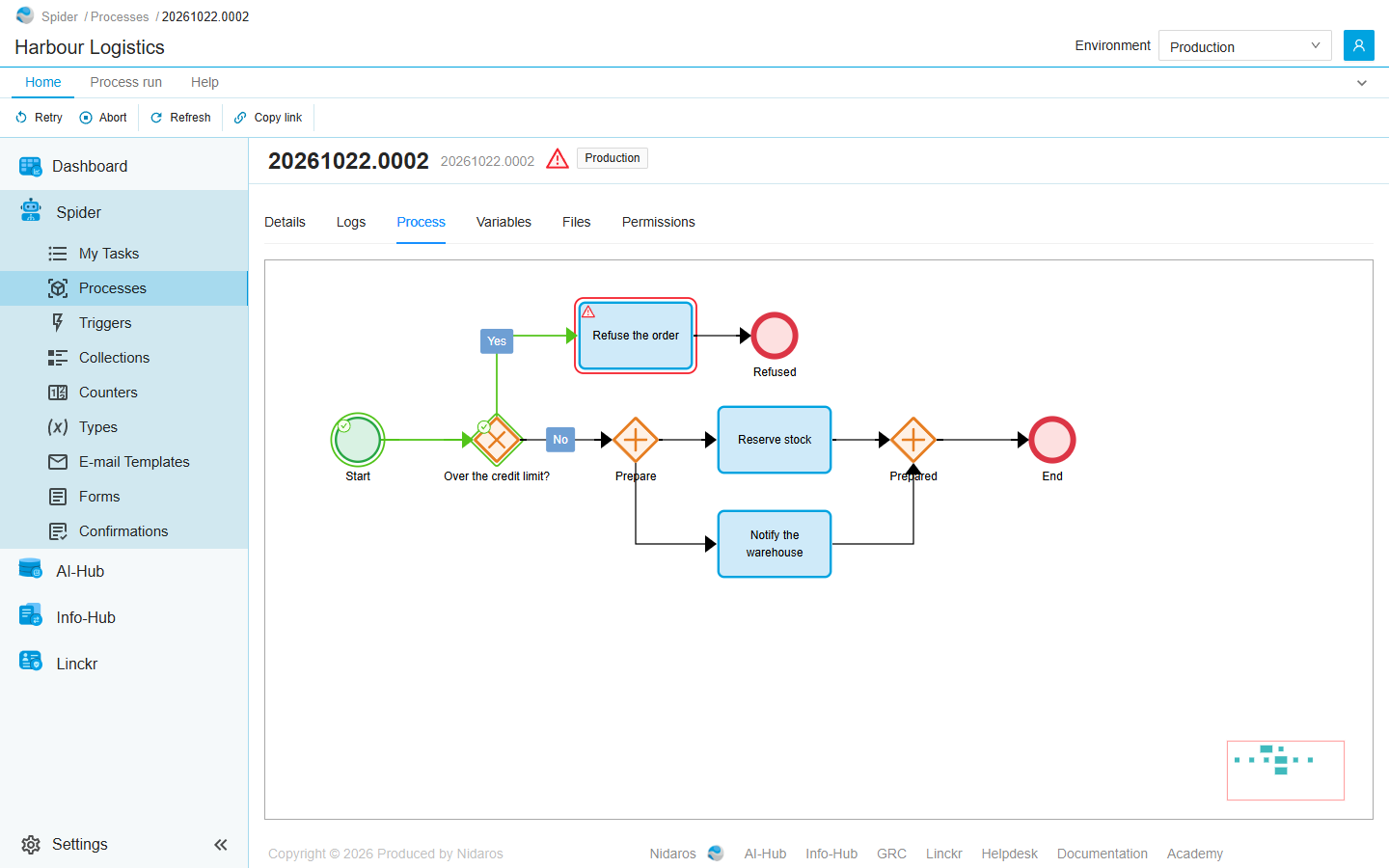
The run's diagram, coloured by how far the run got:
| Node | Border |
|---|---|
| Not reached | None |
| Queued | Light blue |
| Running | Dark blue, with a running icon |
| Waiting, or waiting for an agent | Yellow |
| Succeeded | Green |
| Failed | Red |
A link the run followed is green. A node in a loop shows how many iterations ran (3/5), and a sub-process how many of its runs succeeded.
Click a node's i to see its settings. For a sub-process, Open sub-process shows its own diagram, with an iteration picker when it ran in a loop.
Variables
The run's variables, with their Name, Type, whether they are an Array or a Parameter, and their value now. A list shows how many items it holds, a file its name, and an e-mail its subject.
Open a variable to see it in full. While the run has not succeeded or been aborted, and you are allowed to change it, you can change its value there and click Save. That is how you fix a value before you retry a failed run.
Files
The files the run holds, with their File name, Size, when they were Added, and the Variable that holds them.
- Open shows the file in a drawer: an image, a PDF, a text, a sound or a video. Other files can only be downloaded.
- Open in new tab opens it in the browser.
- Download saves it.
Children
The runs this run started, through a Start process run node. The tab is there only when the run started any. It works like the list of runs, and shows every child, whatever the environment selected in the header.
On this tab, the ribbon's Run commands act on the selected child, not on this run.
Permissions
Who may view, change and manage this run: the sets View run, Change run and Manage run, each set to Allow, Deny or Not Set for a user or a group. See Permissions.
Commands
| Tab | Group | Command | What it does | Disabled when |
|---|---|---|---|---|
| Home, Process run | Run | Start now | Starts a scheduled run now, instead of at its time. Asks you to confirm. | Shown only while the run is scheduled. |
| Home, Process run | Run | Reschedule | Gives a scheduled run another time to start. | Shown only while the run is scheduled. |
| Home, Process run | Run | Retry | Runs the failed nodes again, and carries on from there. | The run has not failed (Only a failed run can be retried), or there is nothing left to retry. |
| Home, Process run | Run | Abort | Stops the run for good. Asks you to confirm. An activity an agent is running isn't stopped: its result is ignored. | The run has ended already (This run has already ended). A failed run can still be aborted. |
| Process run | Node | Retry node | Runs the selected failed node again. Asks you to confirm. Logs tab only. | The node has not failed (Only a failed node can be retried). |
| Process run | Node | Retry from here | Runs the run again from the selected node. See below. Logs tab only. | The run has not failed or run into an error; the node is a start or end event; the node did not succeed; or the run was retried from an earlier node already. |
| Process run | Node | Cancel node | Stops the selected running node, or a failed iteration of a loop, so the run can go on. Asks you to confirm. Logs tab only. | The node is not running, and is not a failed iteration. |
| Process run | Node | Screenshots | Shows the screenshots the selected node logged. Logs tab only. | The node logged no screenshots. |
| Process run | Go to | Definition | Opens the version of the process definition this run ran. | |
| Process run | Go to | Parent | Opens the run or the trigger run that started this run. | No other run started it (No other run started this run). |
| Home, Process run | View | Refresh | Reads the run and its tabs again. | |
| Home | Share | Copy link | Copies the link to this run, or to the selected row of its list. |
While a command on a node is still going through, the node's commands wait, with The last command on this node is still going through.
The Variables, Files and Children tabs add the List tab, with Open and Refresh (and Download for files). The Permissions tab adds the Permissions tab, with Add group or user and Remove.
Statuses
A run is always in one of these statuses:
| Status | Meaning |
|---|---|
| Todo | Started, and about to run. |
| Scheduled | Waiting for the time it was given to start. |
| Running | Running its nodes. |
| Running with errors | Still running, but a node failed in a branch or loop that carries on. |
| Waiting for a form | Waiting for someone to fill in a form: see My Tasks. |
| Waiting for an agent | Waiting for an agent that can run its next activity. |
| Succeeded | Finished as it should. |
| Failed | Stopped by a failure: every node it was on failed, or it reached its end while a branch had failed (One or more branches failed). A failed run is not the end: you can retry it, or abort it. |
| Aborted | Stopped for good, by hand. |
A node is Todo, Queued, Running, Waiting, Waiting for an agent, Succeeded or Failed. See Statuses for what each means, and Running and monitoring for what to do when a run fails.
Drawers and dialogs
Retry from here
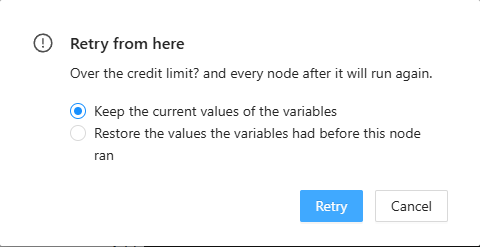
Runs the run again from the node you selected on the Logs tab: … and every node after it will run again. Pick a node that succeeded before the one that failed.
When you are allowed to change the run's variables, you choose what they hold:
- Keep the current values of the variables: as they are now, including what you changed by hand.
- Restore the values the variables had before this node ran: Changes made by hand since then are lost. What other branches wrote since is kept.
Click Retry to go ahead, or Cancel. The nodes that run again are shown dimmed in the node list, and listed again below.
Reschedule Process-run
For a scheduled run: Start at is the date and time it starts, which starts on its current time. A time in the past asks you first: The start time is in the past; the run will start immediately. Click Reschedule to save it, or Cancel.
Screenshots of a node
The screenshots the node logged, one at a time: Previous screenshot and Next screenshot (or the left and right arrow keys), the time it was taken, its message, and Download. While you look at the latest one, a new screenshot takes its place as it arrives.
A variable
The variable's Name, Type, Description and value. You can change the value while the run has not succeeded or been aborted, if you may change the run: click Save. Otherwise Close is the only button.
A file
A preview of the file, with Close. A file that can't be shown, or is too large, says so: download it instead.
Confirmations
- Abort Process-run: Are you sure you want to abort this process-run?
- Start Process-run Now: Are you sure you want to start this process-run now, instead of at the time it is scheduled for?
- Retry node, Cancel node: Are you sure you want to retry this node?, … cancel this node?
Retry asks nothing: it goes ahead at once.
Related chapters
- Running and monitoring: when to retry, retry from here, cancel or abort.
- Processes: the list of every run.
- Process definition: what the run ran.
- Live updates: how the page follows a run.
- Environments