
2.36.24
Lists
Most pages in Spider are lists: of process definitions, runs, triggers, collections, users. They all work the same way.
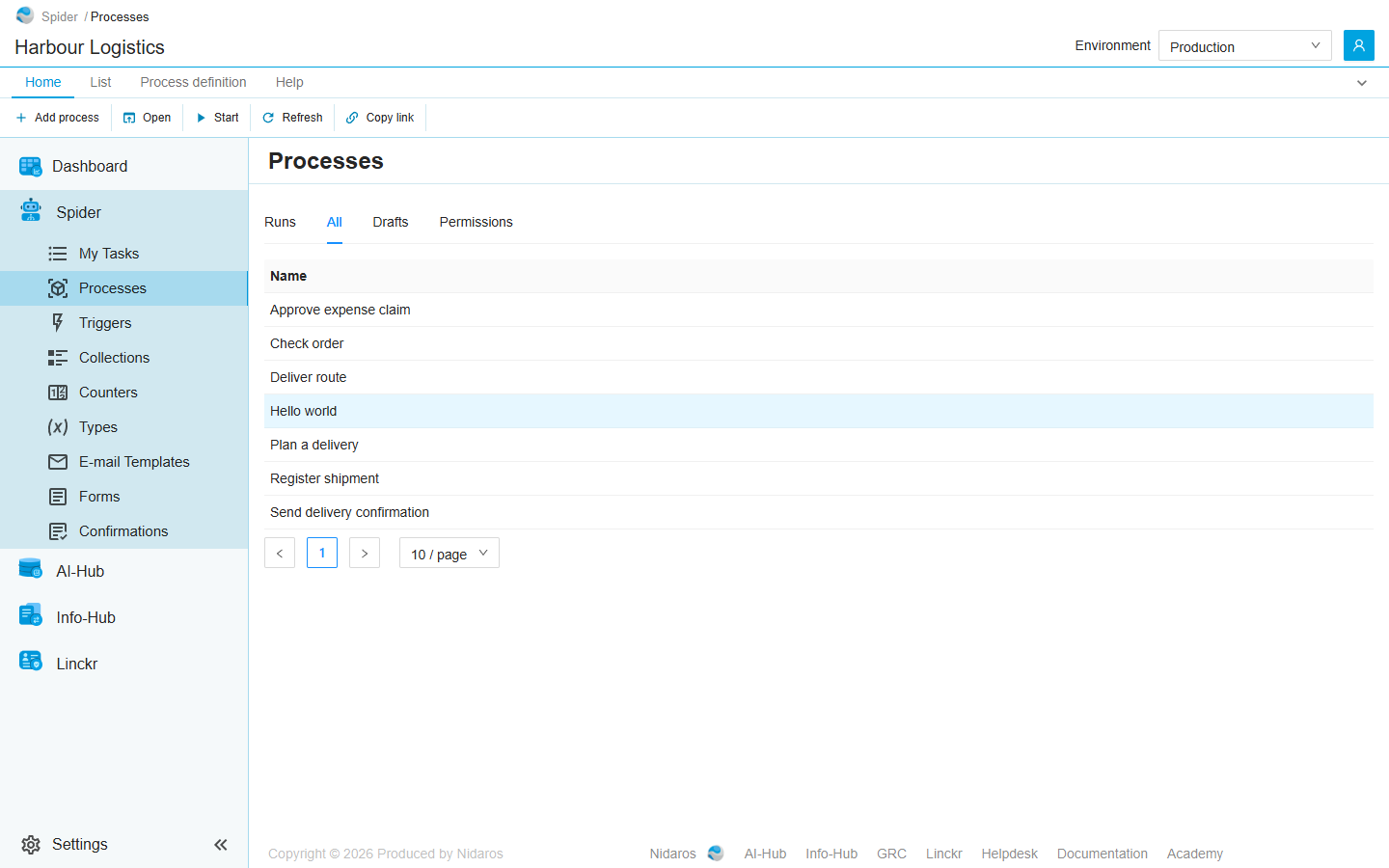
Selecting and opening
- Click a row to select it. The row is highlighted, and the ribbon's commands for one item, such as Open, Start or Delete, now act on it. Only one row is selected at a time.
- Double-click a row to open it. Depending on the list, it opens the item's own page, such as a process definition, or a drawer to view or change it.
- Open in the ribbon does the same as a double click.
Selecting a row never switches the ribbon to another tab, so the commands you were using stay where they are.
Opening in a new browser tab
A row that has a page of its own is a link. So the browser's own ways to open a link work on it too:
- Ctrl-click (on a Mac, Cmd-click) or middle-click the row, to open it in a new browser tab.
- Right-click the row and choose Open link in new tab.
- Or select the row and click the Open in new tab icon, next to Open on the List tab.
A plain click on the row still only selects it.
The keyboard
- Up and Down move the selection to the row above or below.
- Enter opens the selected row, like a double click.
- Tab moves on from the list to the next control on the page.
The List tab
Every list adds the same List tab to the ribbon, with the same groups, in the same order:
| Group | Commands |
|---|---|
| New | Add a new item, such as Add process or Add environment. |
| Open | Open the selected row, or open it in a new browser tab. |
| Manage | Edit where that differs from opening, and Delete (on some lists Remove or Revoke). |
| Arrange | Move up and Move down, on lists whose order matters. |
| Data | Import and Export, where a list has them. |
| View | Refresh reads the list from the server again. |
A list shows only the groups it has commands for. The most-used ones, New, Open, Delete and Refresh, are also on Home, so you seldom need the List tab itself.
Every Delete asks you to confirm it first. See Drawers and dialogs.
Searching, filtering and sorting
Above a list, its title bar holds its search box and filters. The list of process runs, for example, has Search by name, reference or variable value, Filter by Process and Filter by Status. The list follows what you type as you type it, and starts again on its first page.
- To sort a list, click a column header with arrows. Click it again to reverse the order.
- To page through a long list, use the page buttons below it. Next to them, choose how many rows a page shows: 10, 20, 50 or 100. Spider uses that page size for every list, in this browser, until you next sign in.
The page, the page size, the sort order, the search and the filters are part of the page's address. So the browser's back button returns to the list as you left it, and Copy link with no row selected copies the list just as you see it.
Lists that grow while you read them
Lists that grow fast, such as the lists of runs and a collection's items, show new rows only when you ask for them, so the rows you are reading don't move. Instead, a Load 1 more button appears in the title bar. Click it to show the new rows. See Live updates.
Every other list reloads by itself when something in it changes.
When a list is empty
An empty list says so, such as No process-runs found. If you searched or filtered it, clear the search or the filter to see every row again.
Lists that open on a click
Two lists in the main menu open a row on a single click, because they are where people fill in and confirm their work: Forms and Confirmations. Their rows can't be selected, so their ribbon has only Refresh and Copy link.
Lists inside a drawer or a dialog open a row on a click too, and keep their own buttons, because a drawer covers the ribbon.