
2.36.24
Agent
One agent: what it can do, how it signs in, the Windows account it works under, what it has run, and what its screen shows. You put it into maintenance or take it out here, and turn its screenshots on or off.
The header shows the agent's name, its organization (empty for a shared agent) and its status, and, while its screenshots are on, a tag such as Screenshots on failure until 10/29/2026 2:40 PM.
How to get there
- From Agents: double-click an agent, or select it and click Open.
- From an agent-pool's Members tab, an issue about the agent (Live view opens its Live tab), or Administration's Agents widget.
Permission
The page needs View agents, which also shows its credentials and robot account. Some tabs and commands need more:
| Tab or command | Permission sets that allow it |
|---|---|
| In maintenance | Add and change agents, or Resolve issues and run actions |
| Screenshots | Add and change agents |
| Changing capabilities, Add client secret | Add and change agents |
| The Robot account commands | Delete agents |
| The Live tab | Delete agents |
Full access allows them all. They are in the Agents section of Administration's Permissions. See Permissions.
Views
Capabilities
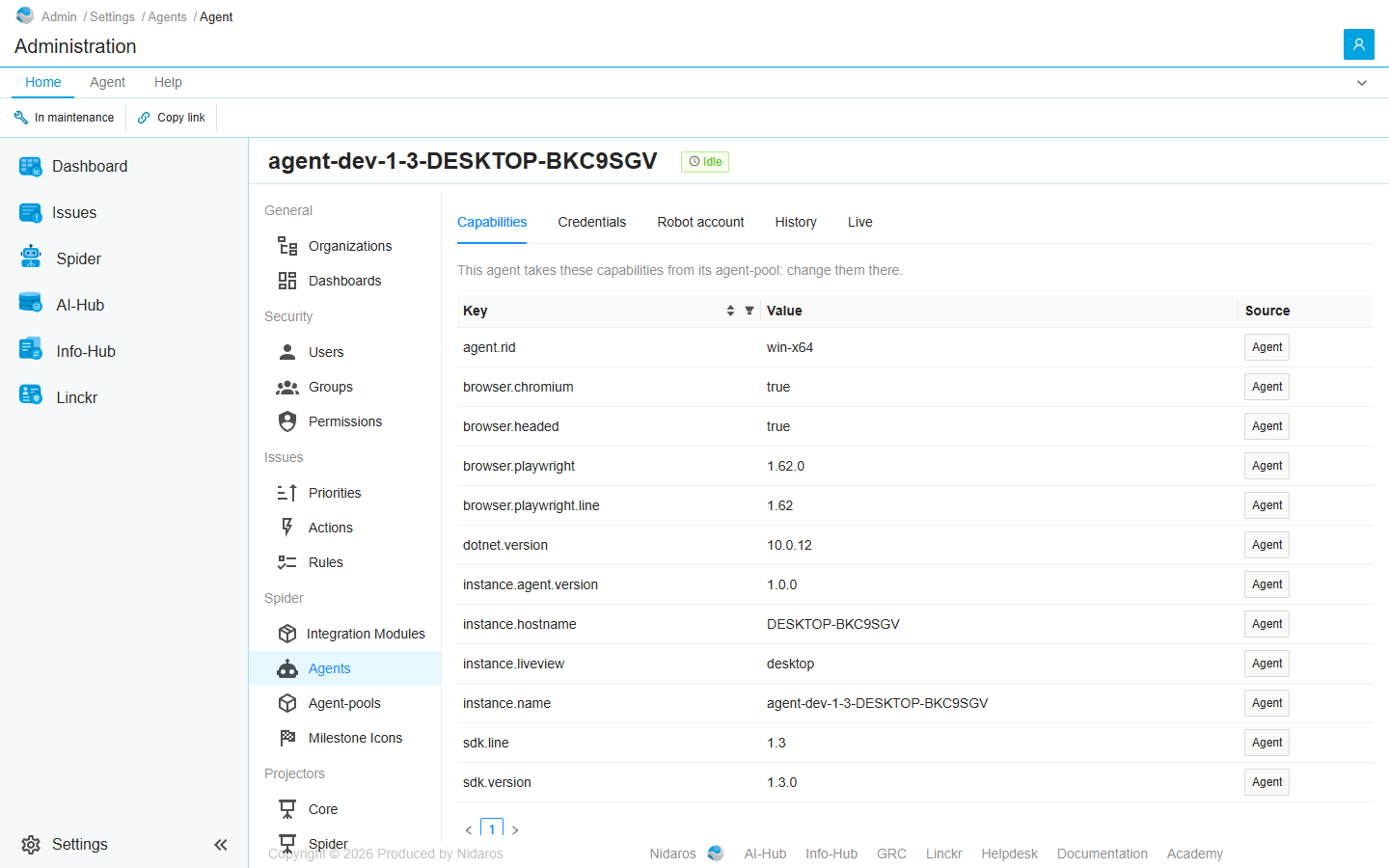
What the agent can do, as keys and values, such as browser.chromium = true. A process's demands are matched against them, to choose an agent that can run it. The columns and the overriding of reported values are those of a pool: see Capabilities.
- An agent in a pool takes its capabilities from the pool: This agent takes these capabilities from its agent-pool: change them there. The list is read-only.
- An agent added on its own reports its capabilities when it connects (Agent), and you can add your own (User), with Add capability, Open and Delete, as on a pool.
Credentials
How an agent added on its own signs in to Spider: its client-id (the agent's key), and its client secrets, with their Description, Expires, Value (obscured) and Identifier.
Add client secret asks for a Description and how long it lasts (Expires: 90, 180, 545 or 730 days), then shows the new secret in a dialog with a button to copy it. Copy it then: Spider never shows it again. Put the client-id and the secret in the agent's settings. A secret can't be revoked: it works until it expires, or until the agent is deleted.
An agent in a pool registers with the pool's token instead: see Tokens.
Robot account
The Windows account the agent logs an interactive desktop session on as, so that it can drive applications with a visible user interface. A Windows agent needs one before it can create a desktop session.
- User name: the account, as
DOMAIN\user, or a bare user name for a local account on the agent's own machine. - Enabled: Active, or Inactive, when the session isn't kept running.
- Password: which version of the password the agent has, and whether it has fetched the latest yet. The password itself is never shown.
- Desktop size: the size of the session's virtual desktop, or Chosen by the agent. Applications lay out against it, so a desktop that is too small makes elements count as not visible.
The commands are in the ribbon's Robot account group: Set robot account (or Edit), Change password, Enable or Disable, and Remove. Disable stops the agent's desktop session and anything running in it, and keeps the account and password; Remove asks first, and changes nothing in Active Directory.
History
Every activity the agent ran, newest first, of process runs and trigger runs alike, with its Activity (and attempt), the run's Name and reference, the Process / Trigger and environment, the Organization, Started, Finished and the Run status. Type in Search by activity, name, reference, process or organization, or use Filter by Status. Double-click a row to open the run's log at that activity. New activities show as a bar Load {n} more.
An organization's agent shows only that organization's runs; a shared agent's history covers every organization.
Live
What the agent's screen shows while it works: Live frames (about one every three seconds, while someone watches), or the latest Screenshots its activities took. The tag says ● Live while frames arrive, and Paused when they don't: The agent sends no live frames: it is not connected, it is older than live view, or live view is turned off on it. Above, Running … in … links to the run it is working on.
The list at the side holds the last 20 screenshots, with when they were Taken, the Activity and the Run. Click one to see it full size. Spider keeps them only until it restarts. See Live updates.
Maintenance
An agent in maintenance takes no new work: its status shows in red. Spider puts an agent into maintenance by itself, and raises an issue, when:
- it reconnects while it was running an activity, which then fails;
- an activity fails for a reason of the agent's own;
- an activity sent to it isn't started within two minutes.
Only someone with the permission takes it out again, with In maintenance on the ribbon, or Take out of maintenance on its issue. Look at its Live tab and History first, to see what went wrong.
Screenshots
Screenshots on the ribbon makes the agent's activities take screenshots, for a while:
- On failure: the activity keeps its last few screenshots, and sends them, with one of the moment itself, only when it fails.
- Always: every screenshot is sent.
Each for 1 hour, 1 day or 7 days; Off turns them off. On the Live tab, Always for 1 hour does that in one click. Screenshots can also be turned on for a process or a trigger; the most telling setting wins. The screenshots show in the run's log and on the Live tab.
Commands
| Tab | Group | Command | What it does | Disabled when |
|---|---|---|---|---|
| Home, Agent | State | In maintenance | Puts the agent into maintenance, or takes it out, after asking. | |
| Agent | Diagnostics | Screenshots | Turns screenshots on for a while, or off: see Screenshots. Also on Home on the Live tab. | Off: the screenshots are off already (Screenshots are off). |
| Home, Agent | Diagnostics | Always for 1 hour | Turns screenshots on, always, for an hour. Live only. | |
| Home, Agent | Robot account | Set robot account, Edit, Change password, Enable, Disable, Remove | Manage the robot account. Robot account only. | The account couldn't be read, or there is none yet (This agent has no robot account). |
| Agent | Go to | Agent-pool | Opens the agent's pool. | The agent is in no pool (This agent is in no agent-pool). |
| Home, List | New | Add capability, Add client secret | Adds a capability (Capabilities, an agent on its own) or a client secret (Credentials). | |
| Home, List | Open | Open | Changes the selected capability, opens the selected activity's log, or the selected screenshot. | Nothing is selected, or the agent reports the capability itself. |
| Home, List | Manage | Delete | Deletes the selected capability, after asking. | Nothing is selected, or the agent reports it. |
| Home, List | View | Refresh | Reads the list again. Credentials and History. | |
| Home | Share | Copy link | Copies the link to this page, with its tab. |
The agent itself is deleted on Agents.
When the agent changes elsewhere
The page shows changes to the agent by itself, such as its status. When someone deletes it, the page says so, with a link back to the list. See Changed elsewhere.
Related chapters
- Agents
- Agent-pool
- Process definition: a process's demands.
- Issues