
2.36.24
Rules
The rules that decide which actions an issue gets. A manual rule suggests its actions to whoever opens an issue it applies to; an automatic rule runs them by itself.
How to get there
- From Administration's Settings: Rules, in the Issues group.
Permission
The page needs View issues, which opens a rule read-only. Add rule, changing a rule, its Enabled switch, Move up, Move down and Delete need Manage issue rules, actions and priorities. Both are in the Business support section of Administration's Permissions, and Full access allows them too. See Permissions.
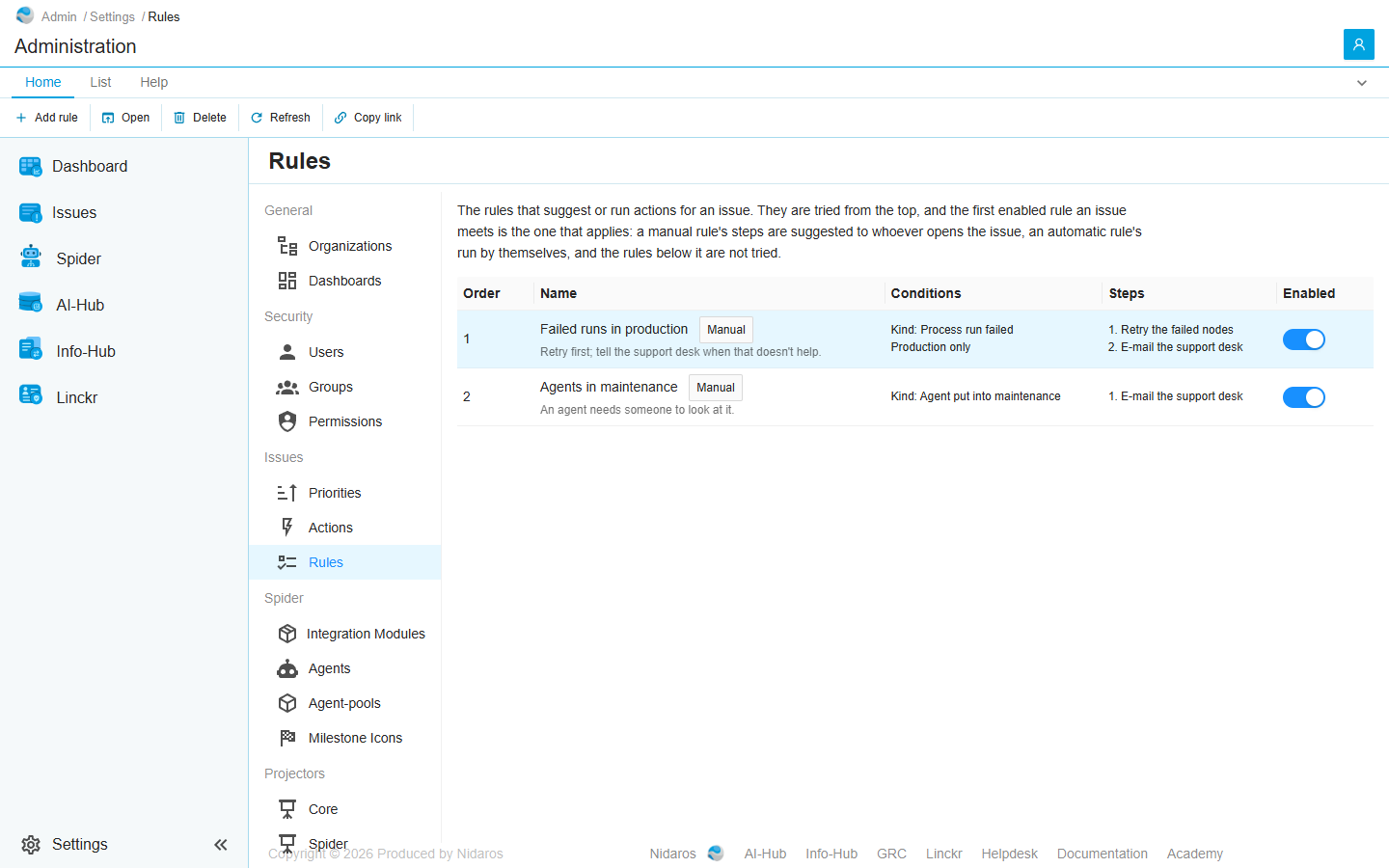
How rules apply
The rules are tried from the top, each time an issue occurs. The first enabled rule the issue meets is the one that applies, and the rules below it are not tried. So put the narrow rules above the broad ones: the first failure of a run in production above every failure in production, say.
- A manual rule suggests its steps to whoever opens the issue, in the dialog's Actions section. Each is previewed with the issue's data as it is then, and runs only once someone confirms it. Each new occurrence brings its own suggestions.
- An automatic rule runs its steps by itself, each once its delay after the failure has passed: at once, or after up to seven days. An e-mail or ticket is written with the issue's data as it was at the failure, and sent as it was written. Resolving the issue cancels the steps still waiting.
A rule without steps still applies: it suggests or runs nothing, and the rules below it are not tried for what it matches.
The list
Every rule, in the order they are tried.
| Column | Shows |
|---|---|
| Order | Its place: 1 is tried first. |
| Name | The rule's name, tagged Manual or Automatic, with its description under it. |
| Conditions | What an issue must meet, one condition a line, such as Kind: Process run failed and Production only. Every issue when it has none. |
| Steps | Its actions, in order. An automatic rule's say when they run: (at once), (after 5 min). |
| Enabled | A switch, saved at once (The rule is enabled.). A disabled rule keeps its place, but matches nothing. |
Double-click a rule, or select it and click Open, to see it or change it: see The rule.
Commands
| Tab | Group | Command | What it does | Disabled when |
|---|---|---|---|---|
| Home, List | New | Add rule | Adds a rule, at the bottom: see The rule. | A move or a switch is being saved. |
| Home, List | Open | Open | Opens the selected rule. | Nothing is selected. |
| Home, List | Manage | Delete | Deletes the selected rule, after asking. | Nothing is selected, or you may not delete this one. |
| List | Arrange | Move up, Move down | Moves the selected rule one place up or down, so it is tried before or after its neighbour. | Nothing is selected, or the rule is first (This item is already first) or last (This item is already last). |
| Home, List | View | Refresh | Reads the rules again. | |
| Home | Share | Copy link | Copies the link to this page. |
Drawers and dialogs
The rule
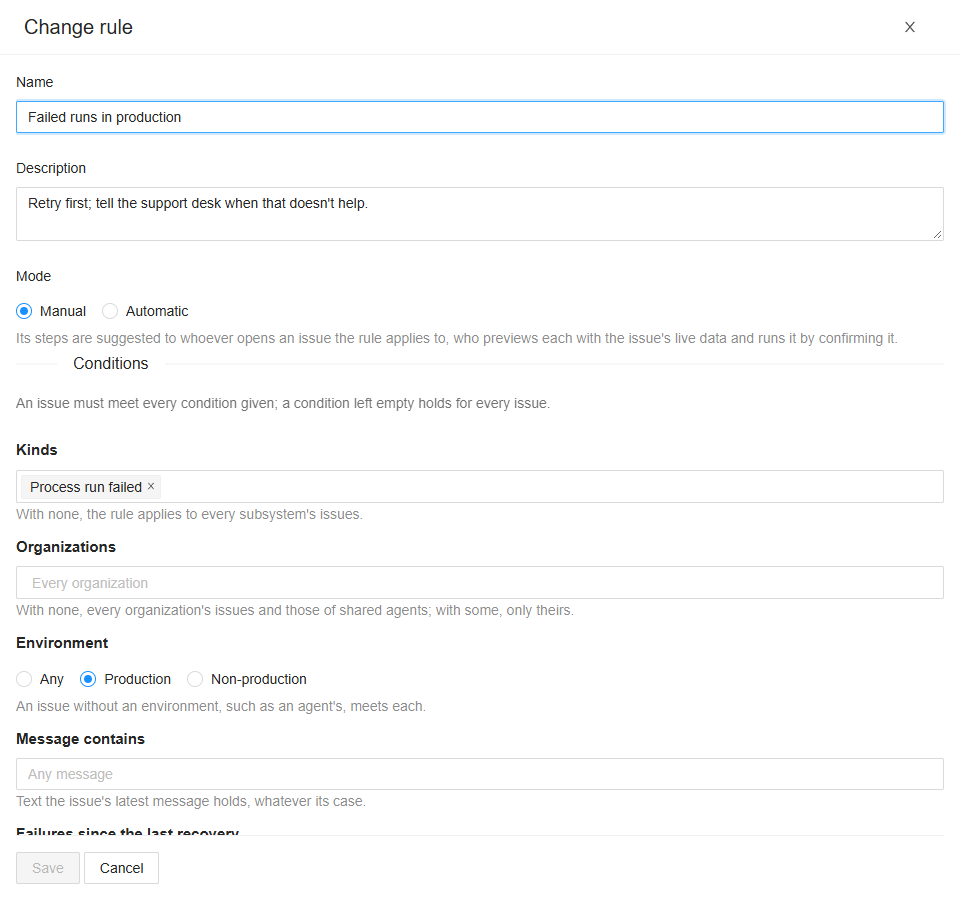
Titled Add rule, Change rule, or Rule when you may only read it.
- Name and Description.
- Enabled, only when adding: checked unless you clear it.
- Mode: Manual or Automatic: see How rules apply.
Conditions. An issue must meet every condition given; a condition left empty holds for every issue.
- Kinds: the kinds of issue. With none, the rule applies to every kind.
- Organizations: with none, every organization's issues and those of shared agents; with some, only theirs.
- Environment: Any, Production or Non-production. An issue without an environment, such as an agent's, meets each.
- Message contains: text the issue's latest message holds, whatever its case.
- Failures since the last recovery: From … up to and including …. The latest failure counts too, and a recovery starts the count again. So one rule can apply to the first failure, and a rule below it to the ones after.
- Process, Trigger, Failure reason and Agent, for the kinds they fit: pick an organization, then its processes or triggers; the reasons Spider, Agent, Integration module, Activity or Process; or agents. The issue must be about one of those picked. When none of the kinds chosen has such a condition, the drawer warns that the rule then matches nothing.
Steps. The actions, in order. Pick one in Add a step to add it; each step has buttons to move it up or down, or remove it. A manual rule suggests each action once; an automatic one can run an action more than once, each with its own Run after. A rule takes at most 20 steps.
Retry what failed acts on Spider's issues only, so it can be a step only of a rule whose kinds are all Spider's kinds it acts on: Process run failed and Trigger failed.
Save saves the rule (The rule … is saved.), Cancel leaves it as it was.
When someone else saves or deletes the rule while you have it open, a banner says so: Reload shows it as it is now, and loses what you changed.
Delete the rule
Delete the rule …? Its steps are no longer suggested, and the rules below it are tried in its place. Click Yes to delete it, or No.