
2.36.24
Sub-processes and loops
A sub-process is a process inside a process: a series of steps with a canvas and variables of its own, which the process around it runs as one node. A loop repeats a node for each item of a list. Together they are how a process does the same work for every order line, every delivery, every attachment. This chapter explains both.
A sub-process
Place one with Sub-process in the Insert group of the Designer tab. It is a rectangle with a + in a square at its bottom, linked like an activity: one link in, one link out.
Use a sub-process to:
- repeat a series of steps for each item of a list, with a loop on the sub-process;
- keep a long process readable, by drawing a part of it as one node;
- give a part of the process its own end, such as a check that ends early without ending the run.
Drawing it
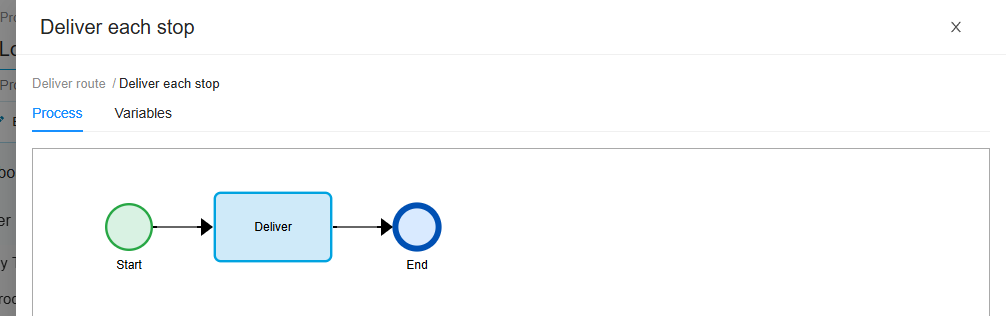
Click Open sub-process on the Details tab of its settings. Its canvas opens in a drawer over the process, with two tabs:
- Process: the sub-process's own canvas. It is drawn exactly as a process: it needs a start event and an end event, and the Designer tab above it places the nodes.
- Variables: the sub-process's own variables and parameters. See below.
The breadcrumb at the top shows where you are. A sub-process can hold sub-processes of its own: click a name in the breadcrumb to go back up, and the process's name to close the drawer.
Its variables
A sub-process has variables of its own, which you add on its Variables tab. Nothing outside the sub-process can read them; inside it, they work like any other variable. Each time the sub-process runs, its variables start again from their default values: in a loop, each round starts afresh.
Inside the sub-process, inputs and conditions can read the variables of every process around it, as well as their own. But they can write only the sub-process's own: an output inside it can't go into a variable of the process around it. Values go out through the sub-process's outputs.
Its inputs and outputs
The sub-process node's settings connect it to the process around it:
- Inputs has an input for each of the sub-process's parameters, the variables with Allow use of this variable as a parameter ticked. Fill them in from the process around it, as any input: see Inputs. A parameter left empty gets its default value.
- Outputs has a row for each variable of the sub-process. Pick the variable of the process around it that gets its value when the sub-process ends: see Outputs. The rows you leave empty hand nothing back.
Deliver route passes each delivery of its list into the sub-process's parameter Delivery, as {Item}:

How it ends
A sub-process ends when an end event in it is reached, and nothing else in it is still running. Its outputs are then written to the process around it, and the run goes on after the sub-process node.
An end event in a sub-process can end the whole run instead. In its settings, under When reached, pick:
- End the sub-process and continue with the parent (the default): as above.
- Terminate the process run: the run ends at once, from wherever it is. The canvas shows such an end event with a filled disc. Terminate end event in the Insert group places one directly.
A run ended this way Succeeded, or Failed when a node had failed before. The outputs of the sub-processes it was in are not written: nothing is handed back. Use it for a check that makes the rest of the work pointless, such as an order that turns out to be cancelled.
Loops
An activity, a sub-process and a start process run can each repeat for each item of a list. There is no loop node: the loop is a setting of the node, on its Loop tab.
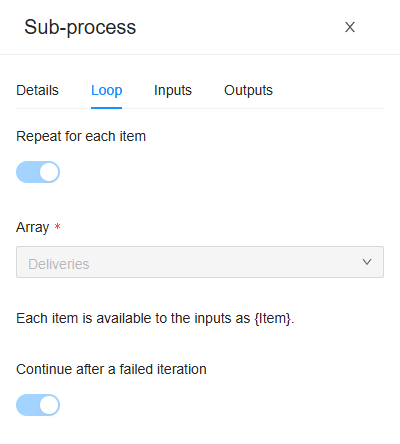
- Repeat for each item: turns the loop on. The node shows a loop sign in its top left corner.
- Array: the list to go through, a list variable of the node's own process. A list inside a variable can be picked too, such as Order › Lines.
- Each item is available to the inputs as {Item}. Each round,
{Item}is the item of that round:{Item.Recipient}for a list of Delivery. See The loop's item. - Continue after a failed iteration (on by default): when a round fails, the next round starts anyway. Off, the loop stops at the first round that fails.
How a loop runs
- The rounds run one after another, in the order of the list, never side by side. Round 2 starts when round 1 has ended.
- The list is read when the node starts. Changing it while the loop runs doesn't add rounds; removing items from it fails the node.
- An empty list means no rounds: the node succeeds at once, and the run goes on. So does a list variable that holds nothing.
- A loop does at most 1,000 rounds. A longer list fails the node before its first round.
- Its results are collected: each round appends its output to a list, which the loop empties once when it starts. See Outputs in a loop.
{Item}is the item, not its number: a loop has no counter. When you need one, keep it in a variable of your own.
When a round fails
A node with a loop goes on to the next node only when every round has succeeded. When a round fails, the node waits, and the run is Running with errors while other rounds go on, or Failed when nothing else is running. On the run's Logs tab, pick the round that failed, and:
- Retry node runs that round again, once you have fixed what went wrong;
- Cancel node gives that round up: the loop then ends without it (Iteration cancelled by user), and the run goes on.
Retry on the run retries every failed round. See Process run.
In the run
On the run's Logs tab, a looping node has a line for each round (Iteration 2 of 3), each with the logs of what it ran. A sub-process's nodes are under the sub-process.
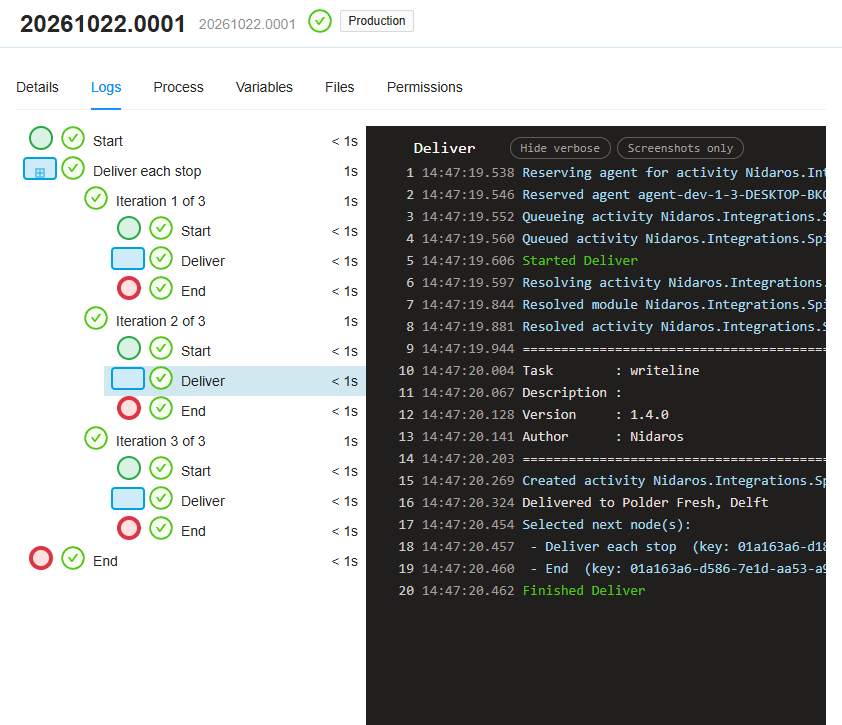
On the Process tab, a looping node shows a round number, such as 1/3: the round it shows, not how many have run. Open sub-process in a sub-process's settings shows the canvas it ran, coloured as far as it got, with a picker for the round (Iteration 1 of 3). It starts on the first round that failed, or else the first still running. See Process run.
The run's Variables tab shows the variables of the process itself, not those of its sub-processes.
What the check says
A sub-process is checked as a process of its own: see The check, which says sub-process where it says process. On top of those:
| Message | Severity | What to do |
|---|---|---|
| The sub-process has no nodes. | Error | Open it, and draw its process. |
| The parameter 'Delivery' has no value. | Error | Fill the parameter in on the Inputs tab, or give it a default value. |
| The loop has no array variable to iterate. | Error | Pick the list under Array. |
| The loop iterates variable 'Delivery', which is not an array. | Error | Pick a list. |
| The loop iterates a variable that is not declared in this scope. | Error | Pick a list of the node's own process; the one picked was deleted, or belongs to another. |
| The node repeats for each item, but none of its inputs reads {Item}. | Warning | Read {Item} in an input, or untick Repeat for each item. |
| The output 'Result' writes variable 'Total', which is not an array; a loop appends one value per iteration. | Error | Give a looping node's outputs list variables. |
| The output 'Result' writes variable 'Deliveries', which is the array the loop iterates. | Error | Collect the results in another list. |
| The output 'Delivery' is a Delivery value, but variable 'Weight' is declared as Decimal. | Error | Pick a variable of the same type. |
Related chapters
- Inputs and Outputs: a sub-process's parameters and results.
- Variables and parameters: which node sees which variable.
- Starting other processes: a run of its own instead of a part of this one.
- Gateways and conditions: choosing between branches.