
2.36.24
Dashboard
Administration's dashboards: pages of tiles, called widgets, that show at a glance how Spider is doing on the whole server, such as its agents. It is the page Administration opens on. The dashboards work like an organization's: see Dashboard.
How to get there
- From Administration's main menu: Dashboard.
- Going to Administration opens it, as does signing in as a member of Administration.
- From Dashboards: double-click a dashboard, or select it and click Open.
Permission
Administration's dashboards are read with Full access, or with the List and View sets on the Permissions tab of Dashboards. Edit needs Change there, or on the dashboard's own Permissions tab, in its editor. See Permissions.
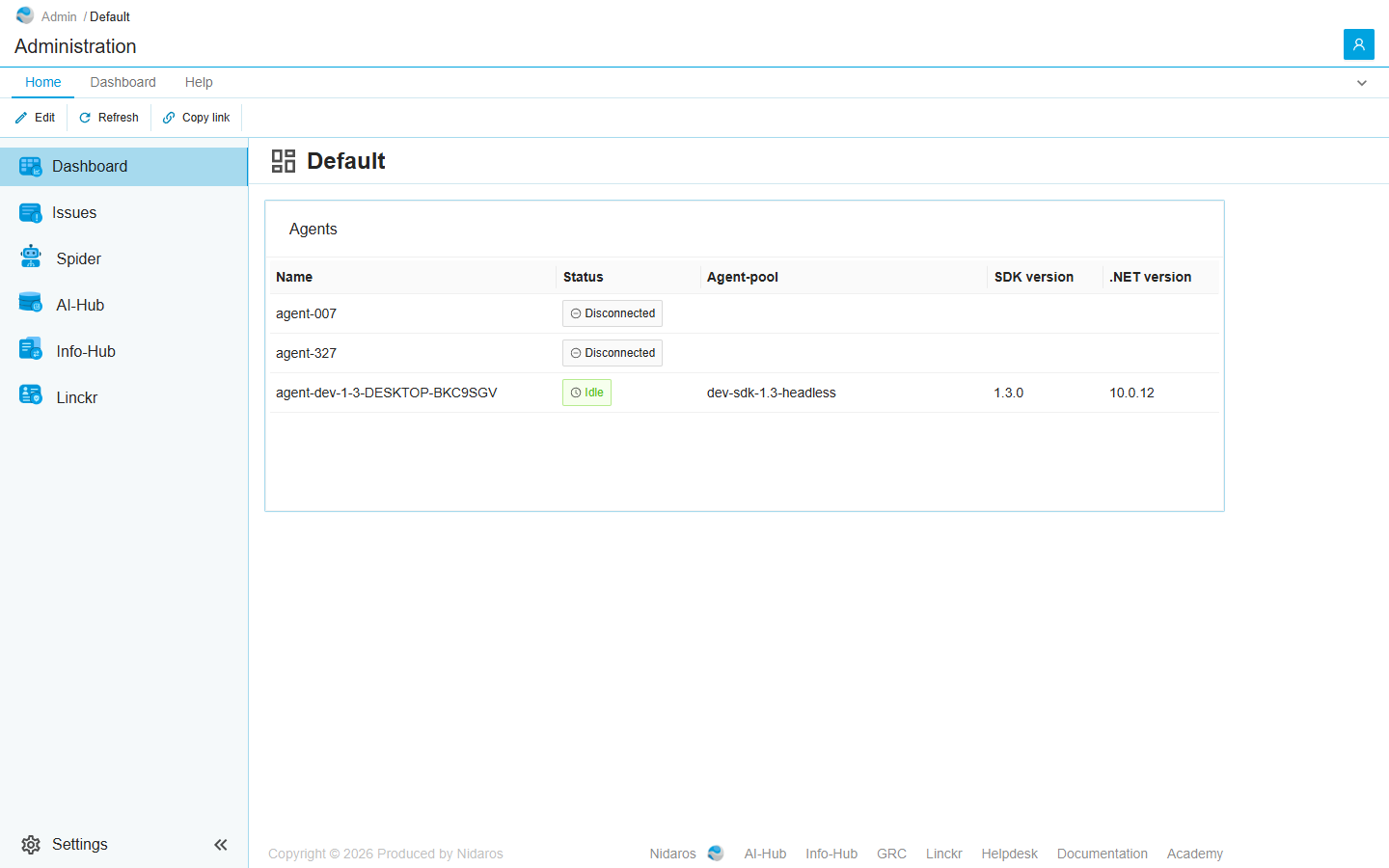
The dashboard
Administration opens on its first dashboard. The header shows its name and when its widgets last read their data: Last updated 14:05:12. The widgets read their data again by themselves every two minutes, or as often as Auto-refresh says, and when you click Refresh.
Widgets
Administration offers its own set of widgets, which look across every organization:
| Widget | Shows |
|---|---|
| Agents | Every agent, with its Name, Status, Agent-pool, SDK version and .NET version. Click one to open its page: see Agent. |
| Process Run Count (All Organizations) | A coloured tile with the number of runs in one status, of every organization together. |
| Markdown | A card with a title and a text of your own, in Markdown. |
Their settings are those of an organization's widgets of the same kind: see Widgets. The editor's Add widget list also offers Processes and Test Widget. Processes shows an organization's processes, so it has nothing to show in Administration; Test Widget is for testing the dashboard itself.
Commands
| Tab | Group | Command | What it does | Disabled when |
|---|---|---|---|---|
| Home, Dashboard | Edit | Edit | Opens the dashboard in the editor: see Editing a dashboard. | |
| Home, Dashboard | View | Refresh | Has every widget read its data again. | |
| Dashboard | Dashboard | Dashboard | Opens another of Administration's dashboards. | |
| Dashboard | View | Auto-refresh | How often the widgets read their data again: every 15s, 30s, 1m, 2m or 5m. | |
| Home | Share | Copy link | Copies the link to this dashboard. |
Administration has no Set as default: it opens on its first dashboard.
Editing a dashboard
Edit opens the dashboard in its editor, which works as an organization's does: drag a widget to move it, drag its corner to resize it, the gear changes its settings, the cross removes it, and the Add widget list at the right adds one. Save keeps the changes and goes back to the dashboard; Cancel goes back without them, after asking when you changed something. See Editing a dashboard.
When Save fails, nothing says so: the editor stays open. Check the dashboard afterwards.
Views
Dashboard
The editor. It is the tab the editor opens on.
Permissions
Who may do what with this dashboard: List, View, Add, Change, Set as default and Delete, and View permissions and Manage permissions. See Permissions.
Editor commands
| Tab | Group | Command | What it does | Disabled when |
|---|---|---|---|---|
| Home, Dashboard | Save | Save | Saves the dashboard as it is now, and goes back to it. | |
| Home, Dashboard | Save | Cancel | Goes back to the dashboard without saving, after asking when you changed something. | |
| Home, Dashboard | Widgets | Add widget | Shows or hides the Add widget list. | |
| Home, Permissions | Principals | Add group or user, Remove | Adds a user or group to the Permissions tab, or removes every permission the selected one has here. Permissions only. | Remove: no user or group is selected. |
| Home | Share | Copy link | Copies the link to the editor. |
Related chapters
- Dashboards: adding and deleting Administration's dashboards.
- Dashboard: an organization's dashboards.
- Agents