
2.36.24
E-mail Templates
The texts of the e-mails processes send, written once and filled in with each run's data. An e-mail template holds a mail's subject and body, such as a delivery confirmation. An e-mail layout holds what goes around the body of every mail, such as the organization's name at the top and its address at the bottom. This page lists both, and its editors add and change them.
These are not the templates of a process definition (its Templates tab), which a process keeps for itself: see Process definition.
How to get there
- From the main menu: Spider › E-mail Templates.
- From an editor: its breadcrumbs, or Save, which comes back here.
Permission
To open the page, and see its templates and layouts, you need Member or View e-mail templates for the whole organization.
Adding and changing templates and layouts needs Manage organization. They have no Permissions tab, so this can't be given for e-mail templates alone. Without it you can't open a template or a layout at all: their only page is the editor, so Open is disabled (Not permitted for this item). See Permissions.
Views
E-mail Templates
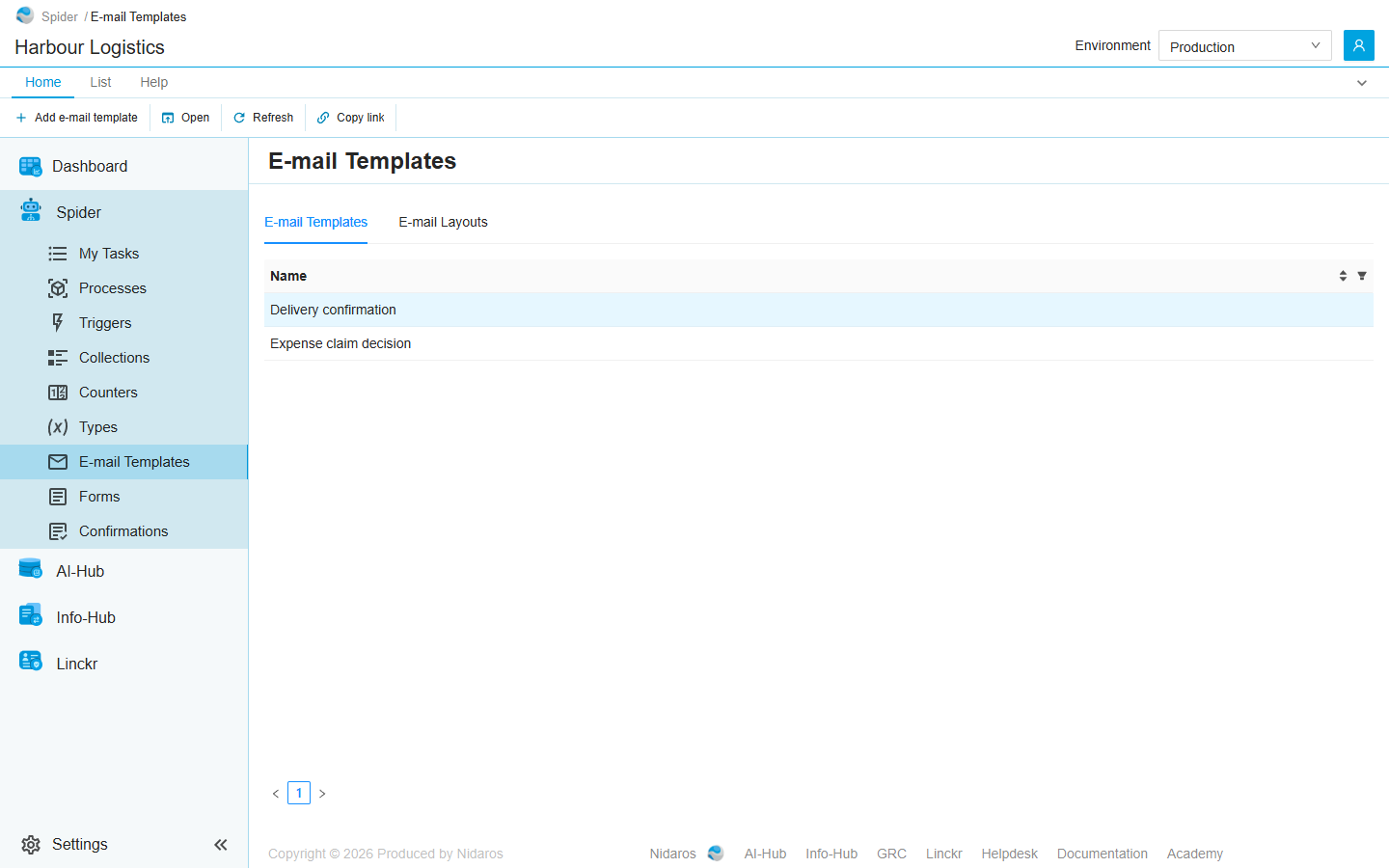
Every e-mail template of the organization, by Name. This is the tab the page opens on.
E-mail Layouts
Every e-mail layout of the organization, by Name.
On both tabs, sort the list by clicking Name, or click the funnel in its header to show only the names that contain a text. All rows are on one page. Double-click a row, or select it and click Open, to open its editor. When a colleague adds or changes one, the list shows it by itself.
Templates and layouts are the same in every environment.
Commands
| Tab | Group | Command | What it does | Disabled when |
|---|---|---|---|---|
| Home, List | New | Add e-mail template, Add e-mail layout | Opens the editor for a new template, on the E-mail Templates tab, or a new layout, on the E-mail Layouts tab. | |
| Home, List | Open | Open | Opens the selected template's or layout's editor. | Nothing is selected, or you may not change it (Not permitted for this item). |
| List | Open | Open in new tab | Opens the editor in a new browser tab. | The same. |
| Home, List | View | Refresh | Reads the list again. | |
| Home | Share | Copy link | Copies the link to the selected template's or layout's editor, or to this page. |
Templates and layouts can't be deleted.
The template editor
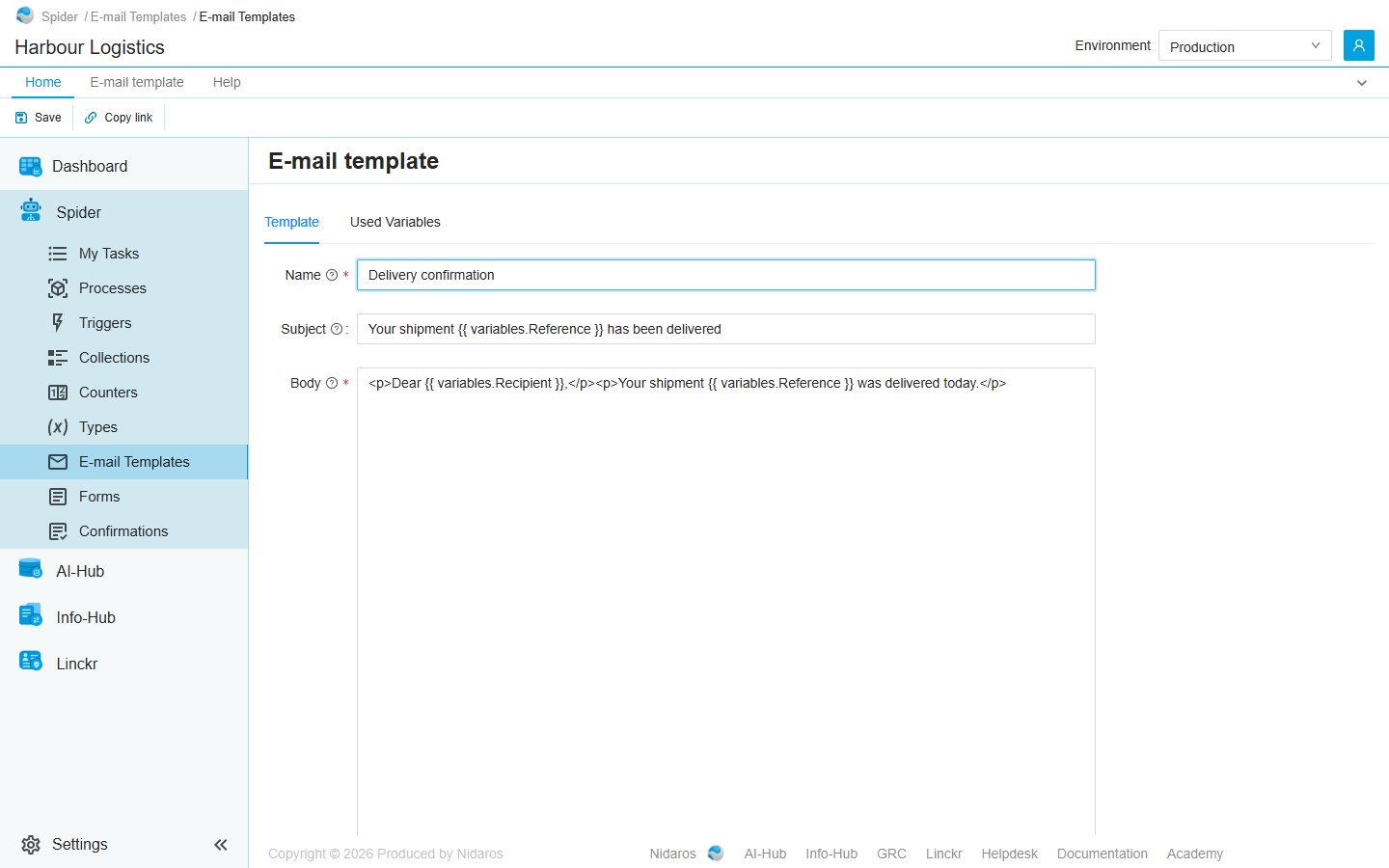
The page E-mail template, with two tabs:
- Template:
- Name: the name the template is picked by.
- Subject: the mail's subject line.
- Body: the mail itself, in HTML.
- Used Variables: the variables the body uses, as a tree. A variable with parts, such as
{{ variables.Shipment.Reference }}, shows its parts below it.
Save, on the ribbon's Home and E-mail template tabs, saves the template and goes back to the list. Name and Body must be filled in. When the save fails, Spider says Something went wrong whilst saving your email template, and the editor stays open.
Placeholders
The subject and the body are Liquid templates: text with placeholders that are filled in when the mail is sent. {{ variables.Reference }} puts in the value of Reference that the process passes to the mail, such as a variable of the run. So Your shipment {{ variables.Reference }} has been delivered becomes Your shipment PO-2024-0414 has been delivered.
Liquid's tags work too, such as {% if variables.Amount > 1000 %}…{% endif %} for a sentence that only some mails get.
Changed elsewhere
When a colleague saves or deletes the template while you have it open, the editor says so above the form, and leaves what you typed alone until you load the template again. See Changed elsewhere.
The layout editor
The page E-mail layout works the same, with Save on the Home and E-mail layout tabs, and two tabs:
- Template: the layout's Name, and its Body, in HTML.
- Used Variables: the variables the body uses.
Put {{ body }} in the layout's body where the template's body goes. A layout such as this one gives every mail the same heading and footer:
html
<html><body style="font-family: sans-serif">
  <h2>Harbour Logistics</h2>
  {{ body }}
  <p style="color: #888">Harbour Logistics, Kade 12, Rotterdam</p>
</body></html>
A layout can use {{ variables.… }} too. Save saves the layout, and goes back to the list on its E-mail Layouts tab.
Using them
The templates and layouts here are the organization's, for the activities of integration modules that ask for one. A process usually writes its e-mails in its own templates instead, on the designer's Templates tab: see Templates and e-mail. When a process that uses the organization's templates is exported, its templates and layouts go along by name only: importing it in an organization that has none by those names creates placeholders, which you fill in here. See Import Process.
Related chapters
- Process definition: the variables a template's placeholders can use.
- Templates and e-mail: a process's own templates, and sending e-mail.
- Changed elsewhere
- Lists